📅 Connect your Google Calendar
Once it's connected, your BookTend appointments show up in your Google Calendar, anything else on that calendar blocks those times on your booking page, and if you move a BookTend appointment in Google, it moves in BookTend too.
Takes about a minute. The one step people miss is step 5 — the calendar box Google leaves unticked.
Open Calendar sync in BookTend
Go to Settings → Calendar sync and click Connect Google Calendar.
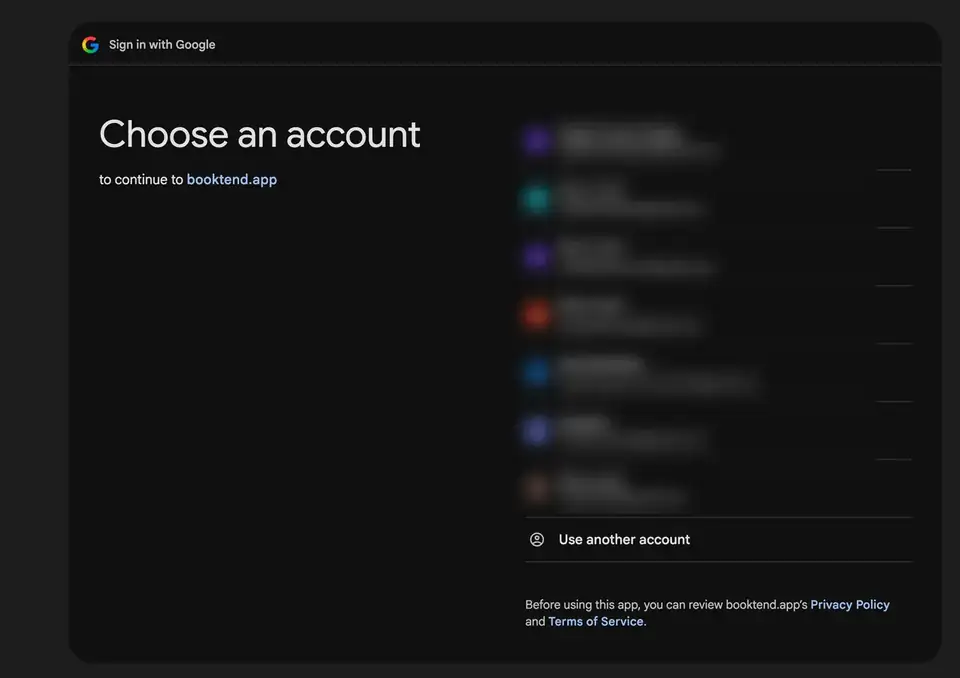
Pick your Google account
Choose the Google account whose calendar you want your appointments on.
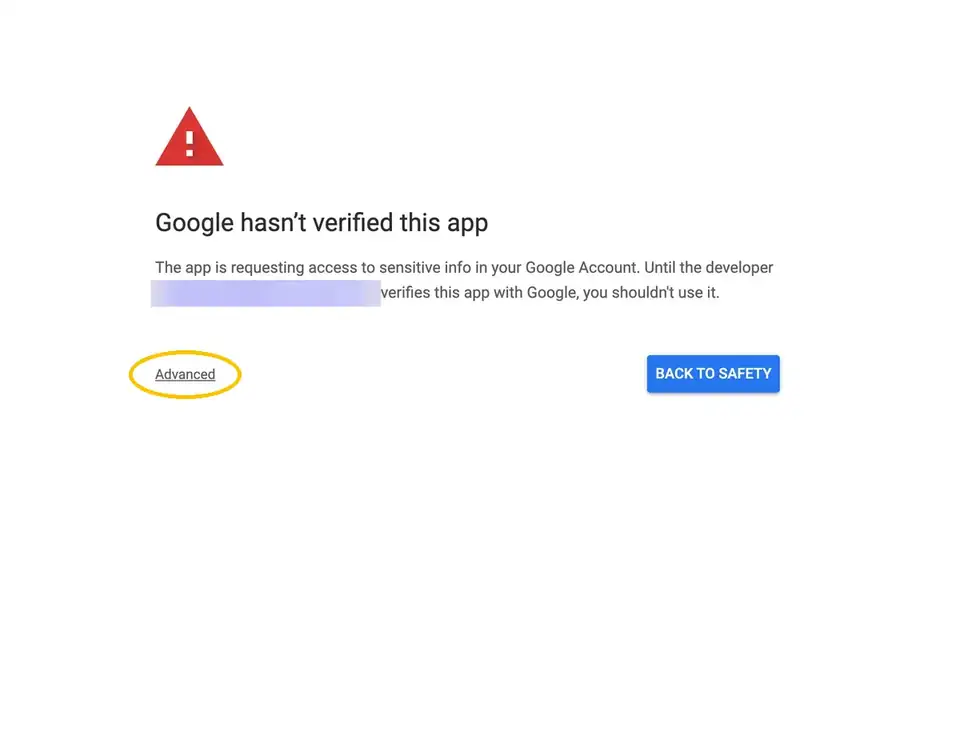
If Google says "Google hasn't verified this app"
Click Advanced, then Go to booktend.app. You'll only see this until Google finishes its review of BookTend.
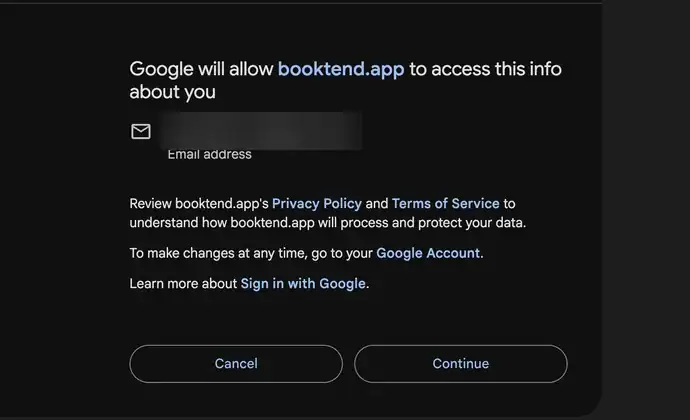
Click Continue
Google shows that BookTend will see your email address. Click Continue.
⚠️ Tick the calendar box, then Continue
On "Select what booktend.app can access," click the empty square on the right of the calendar line so it shows a checkmark. Google leaves it unticked — if you skip it, the calendar can't connect.
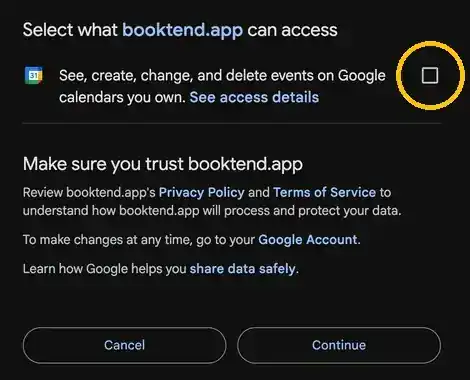
BookTend only asks for calendars you own — never calendars other people shared with you.
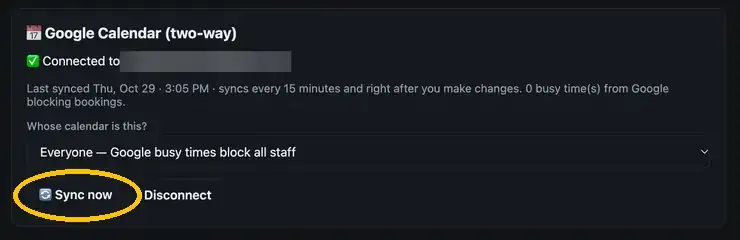
Back in BookTend: you're connected
You'll see ✅ Connected. Click Sync now once, and after that it syncs every 15 minutes and right after you make changes.
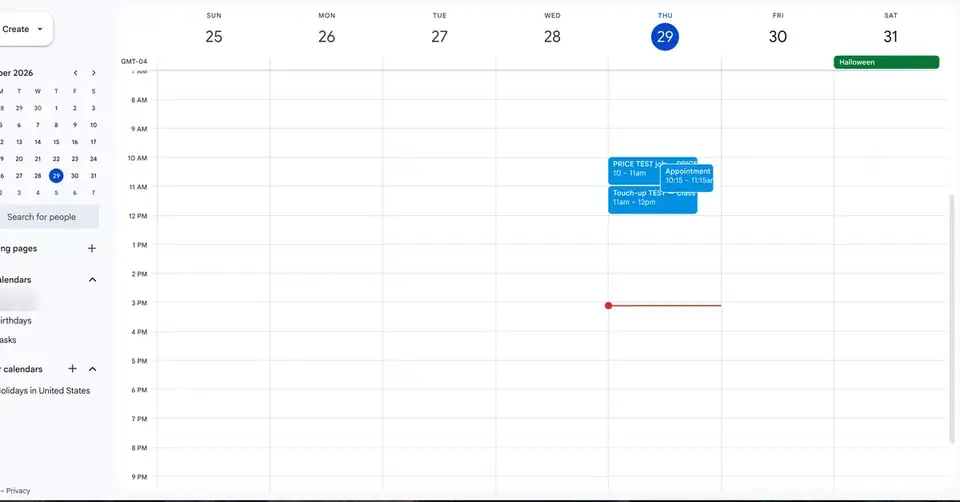
Check Google Calendar
Your BookTend appointments now show up in Google Calendar.
Something went wrong?
- "You didn't tick the Google Calendar box" or "insufficient authentication scopes": the box in step 5 wasn't ticked. In BookTend click Disconnect (if you see it), then Connect Google Calendar again and tick the box.
- Wrong Google account? Click Disconnect, then connect again and pick the right account in step 2.
- Want to stop syncing? Click Disconnect in Settings → Calendar sync. You can also remove BookTend's access any time at myaccount.google.com/connections.
Still stuck? Email support@booktend.app. More about what BookTend stores: Privacy Policy.