Email, merge, delete or bring back a client
Everything here starts on the client's page: Clients, then click their name.
Open the client
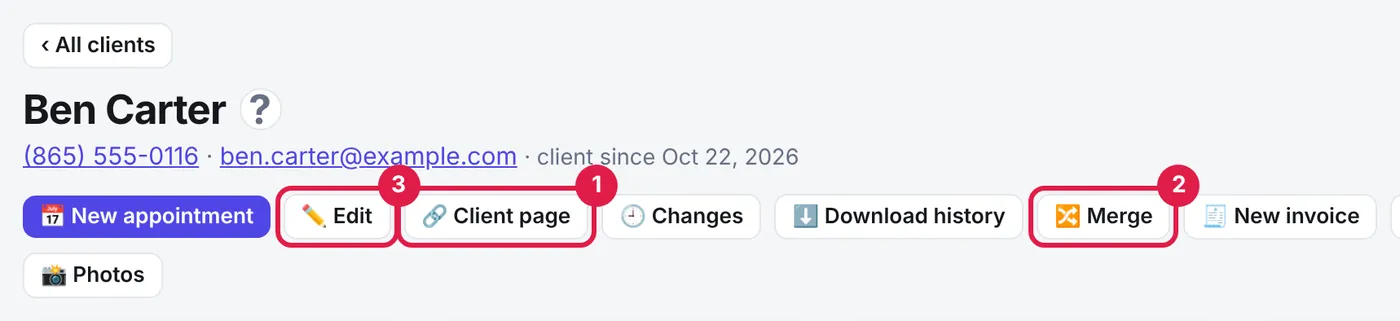
1 🔗 Client page — their private page link, to email them · 2 🔀 Merge — same person saved twice · 3 ✏️ Edit — change details or delete.
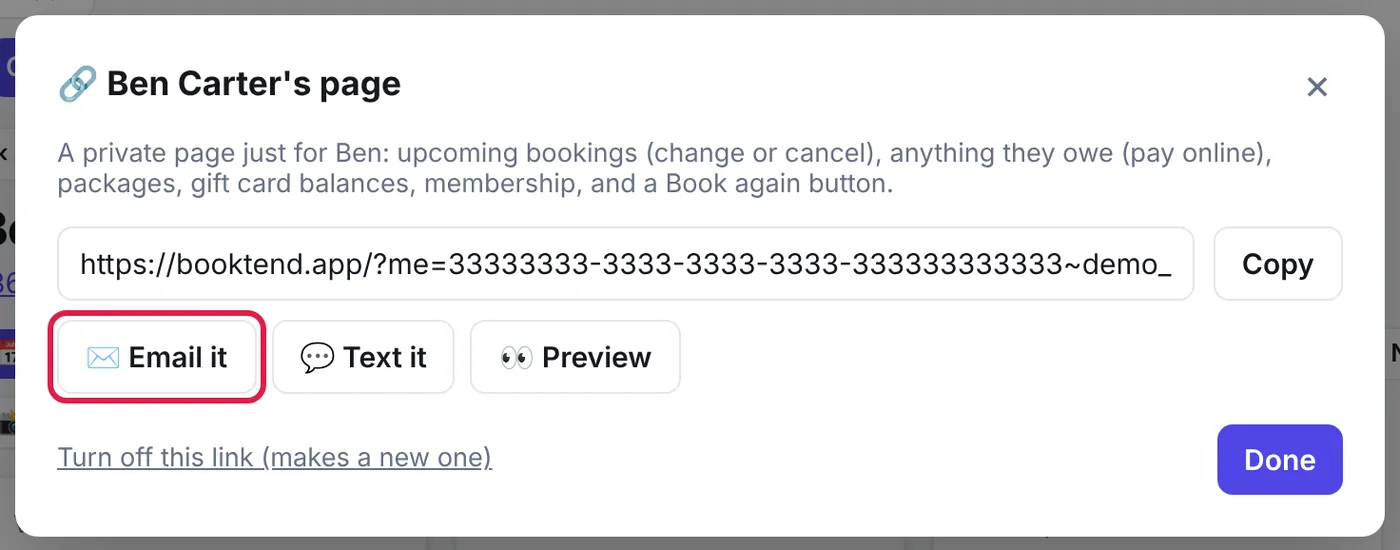
Email them: click ✉️ Email it
Every Email button in BookTend works the same way — reminders, receipts, signed forms, gift cards, the waitlist and more. Here it sends the client their own private page.
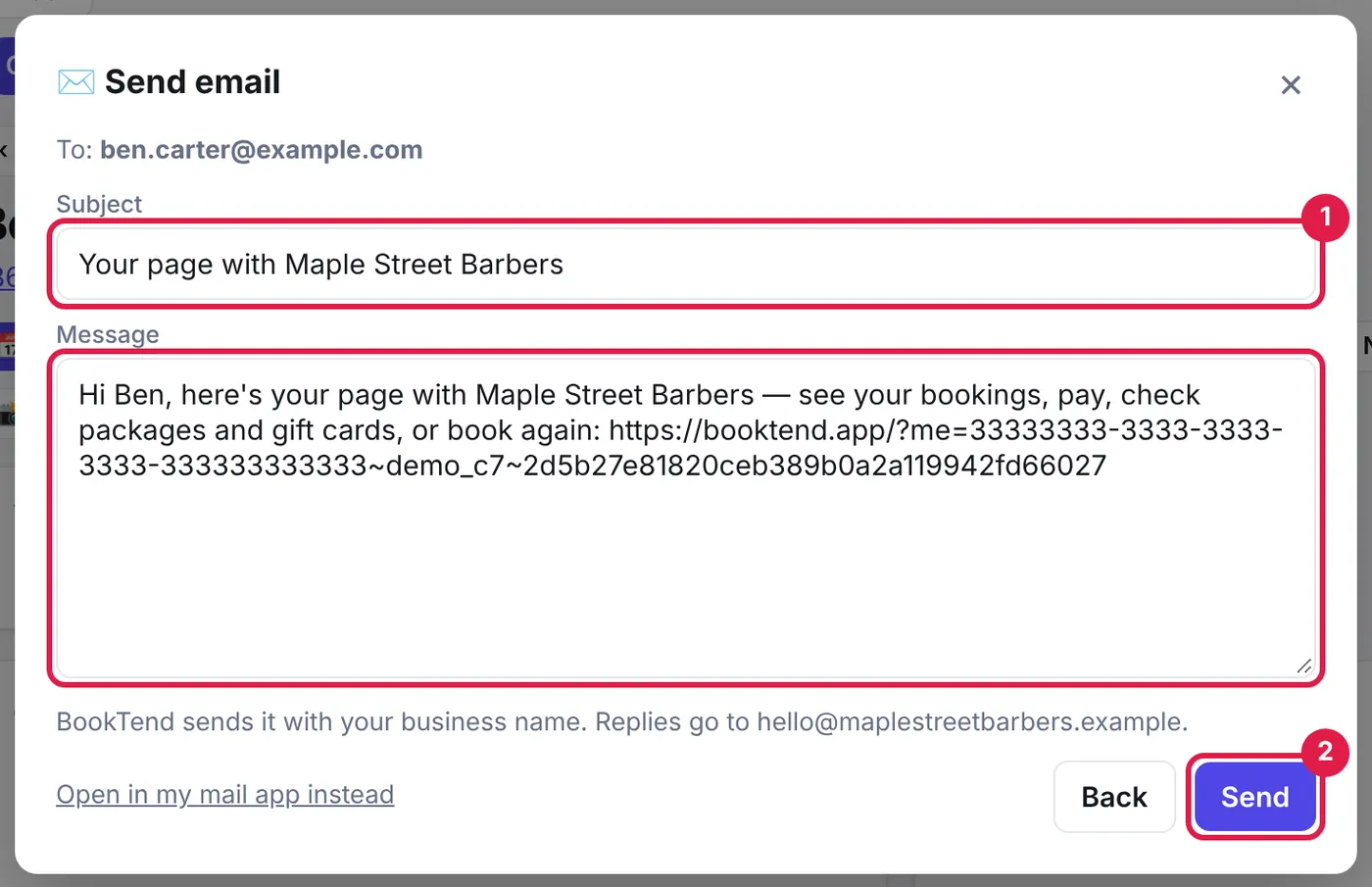
Change the words if you like, then Send
BookTend sends it with your business name, and replies go to your business email. It only goes to the email saved for that client. Rather use your own email? Click Open in my mail app instead.
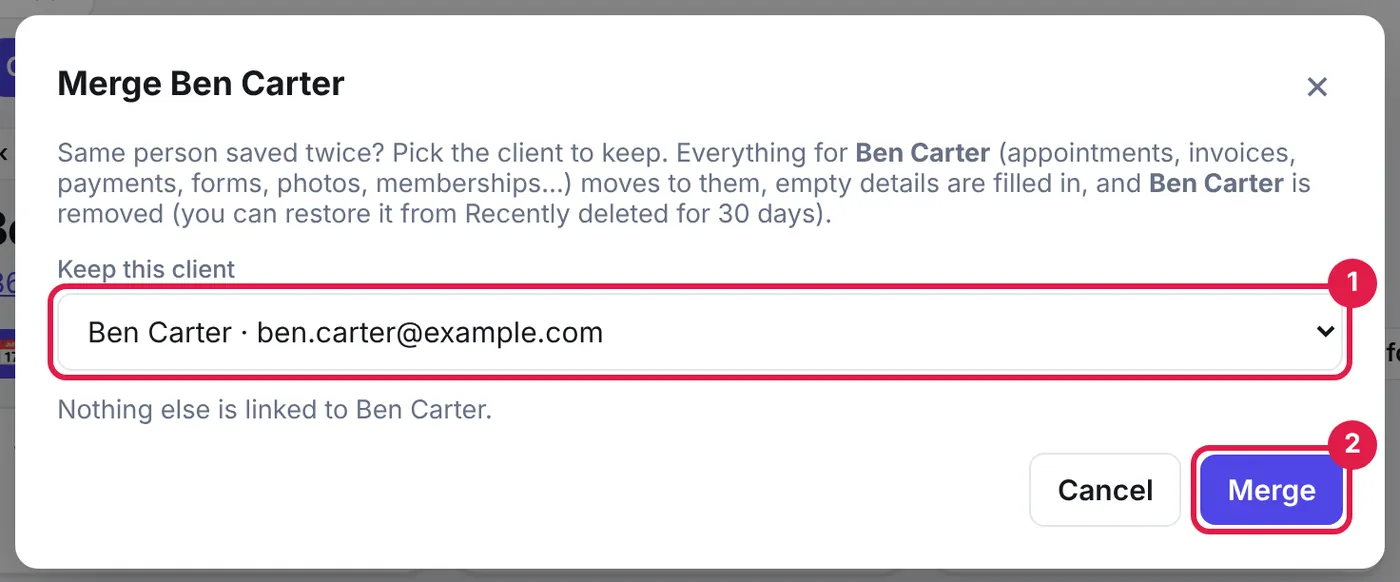
⚠️ Saved twice? Click 🔀 Merge
1 Pick the client to keep — BookTend suggests the match. 2 Click Merge. Their appointments, invoices, payments, forms, photos and memberships all move over.
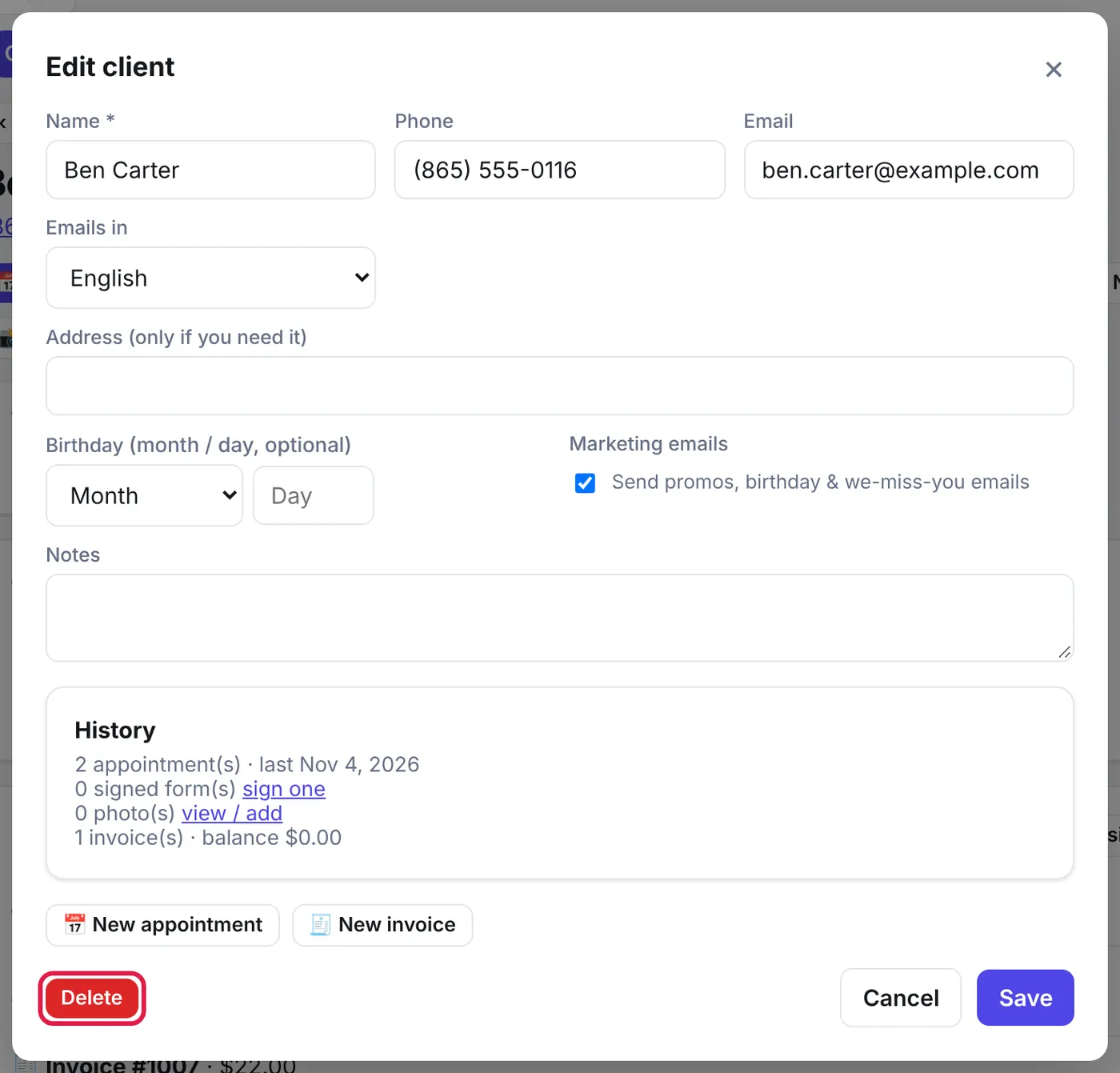
To delete: ✏️ Edit → Delete
Only you (or someone you allow) can delete clients.
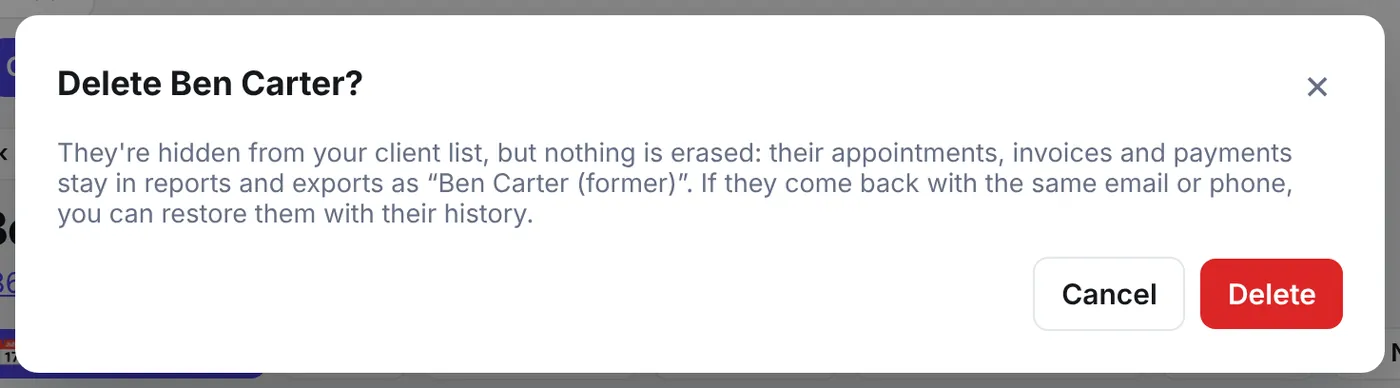
Nothing is erased
They're hidden from your client list, but their appointments, invoices, payments and tips stay in your reports and exports, labeled "(former)".
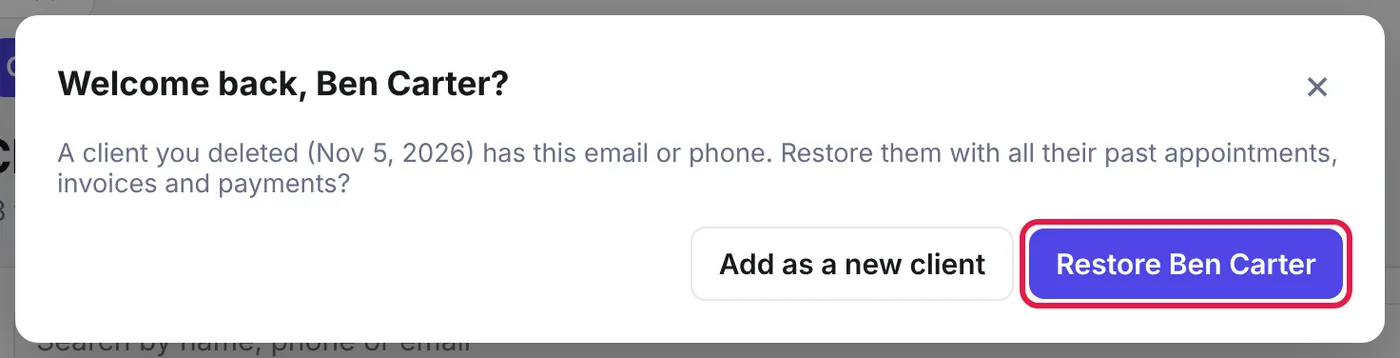
They came back? Restore them
Add them again with the same email or phone and click Restore — their whole history comes back. If they book online with the same email or phone, it happens on its own.
💡 Good to know
- Merged by mistake? The removed copy is in Settings → Account & data → 🗑️ Recently deleted for 30 days.
- Former clients never get marketing emails.
Pictures show the demo shop "Maple Street Barbers" on a computer. On a phone, the same pages are in the bottom bar and under Menu.
Still stuck? Email support@booktend.app · All guides · Privacy · Terms