Let clients move or cancel their booking
Every confirmation email has a Reschedule or cancel link. You decide how close to the appointment they can still use it.
Set your rule
In Calendar → Online booking, pick Customers can reschedule or cancel online: from Up to 2 hours before to Up to 1 week before — or No — they must contact me.

The client opens the link in their email
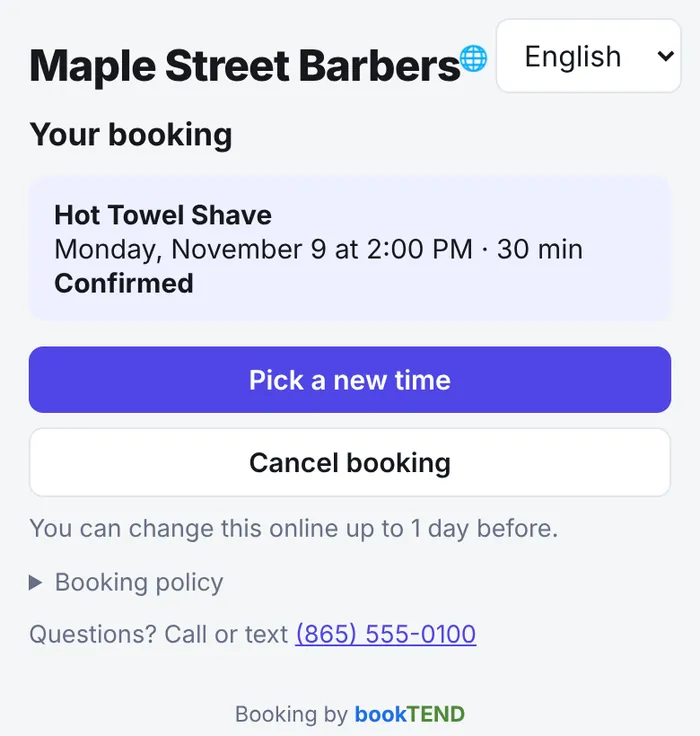
They see their booking with Pick a new time and Cancel booking, plus your rule and your booking policy.
They pick a new time
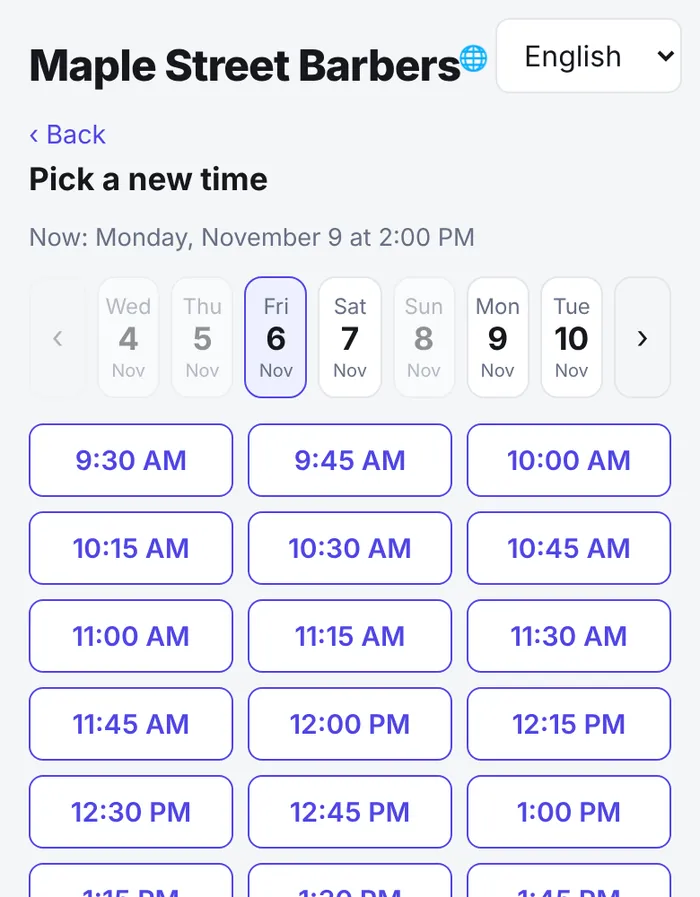
Only open times are shown, with the same person and service. If you approve each new booking, a move waits for your OK too.
You're told
You get an email when a client moves or cancels, and the Calendar updates on its own.
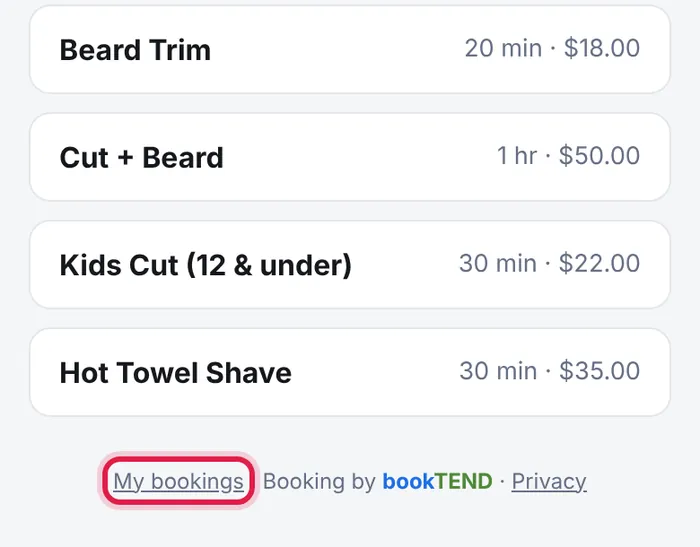
Lost the email? "My bookings"
At the bottom of your booking page, clients tap My bookings, type their email, and get a private link to see their bookings, pay and sign forms.
💡 Good to know
- Took a deposit? The client sees that refunds follow your booking policy.
- Past the cut-off, clients see "This booking can't be changed online anymore" and your phone or email.
Pictures show the demo shop "Maple Street Barbers" on a computer. On a phone, the same pages are in the bottom bar and under Menu.
Still stuck? Email support@booktend.app · All guides · Privacy · Terms