Commission by category, sales goals & "Sold by"
Each person's pay starts with their normal commission. You can add rates for certain categories and levels for sales goals.
Open Team → Staff pay and click a person
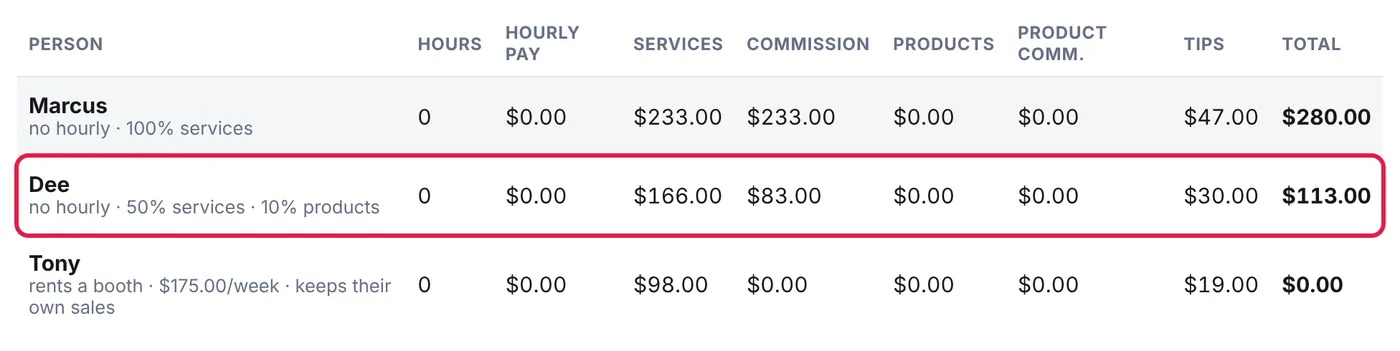
The pay table shows what each person earned for the dates you pick.
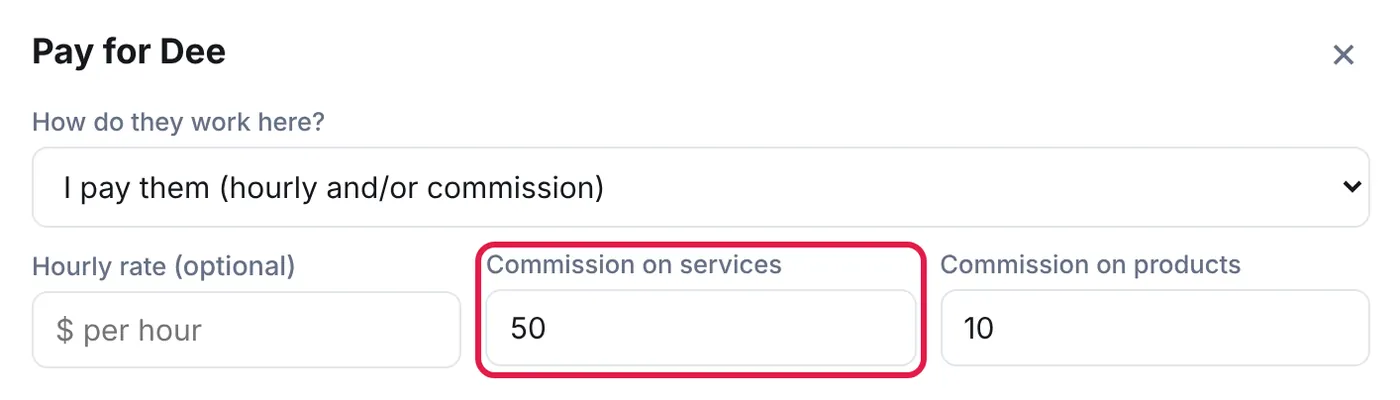
Their normal rates
Commission on services and on products. Example: 50% on services, 10% on products.
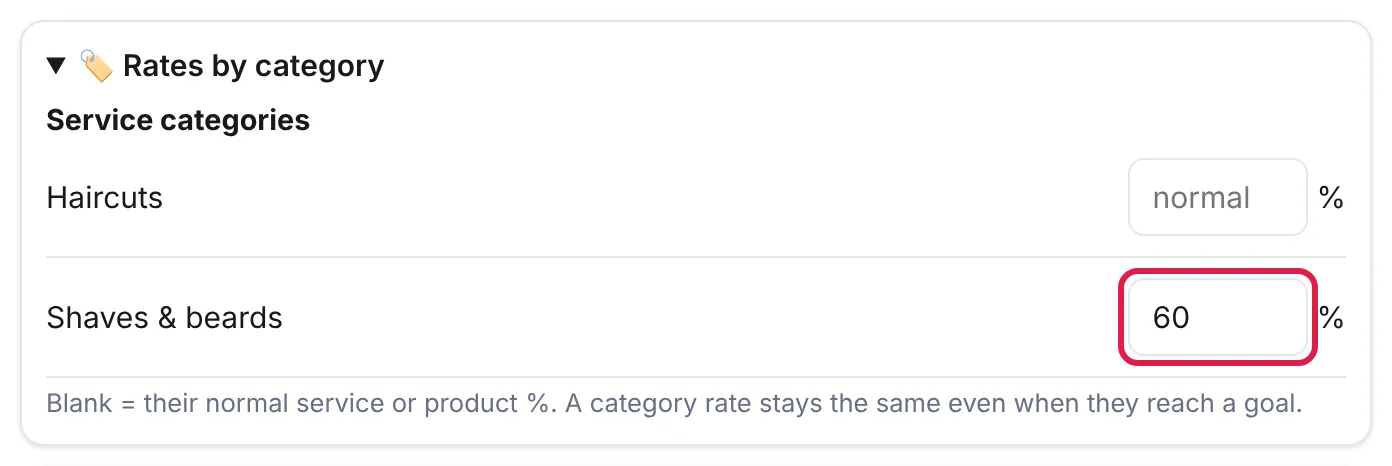
🏷️ Rates by category
Give your services a category (Calendar → Online booking) and products a category (Sell → Products). Then type a rate for that category. Blank = their normal rate.
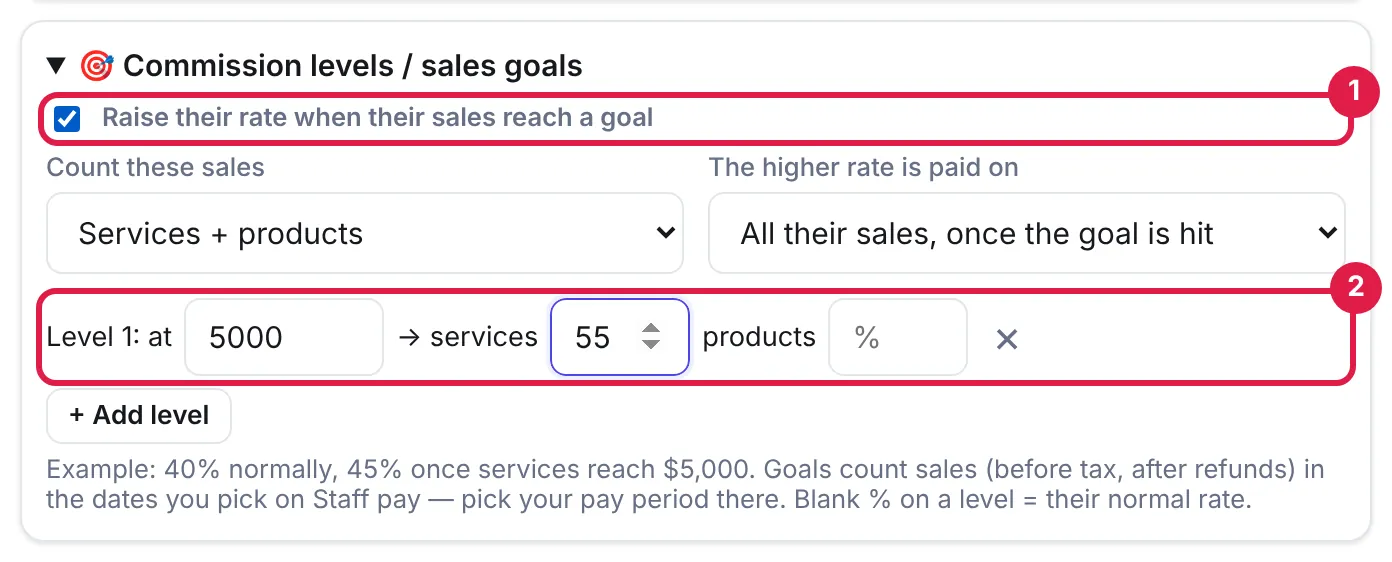
⚠️ 🎯 Commission levels / sales goals
1 Tick Raise their rate when their sales reach a goal. 2 Add levels, like "at $5,000 → 55%". Pick whether the higher rate counts on all their sales or only sales above the goal. Then click Save.
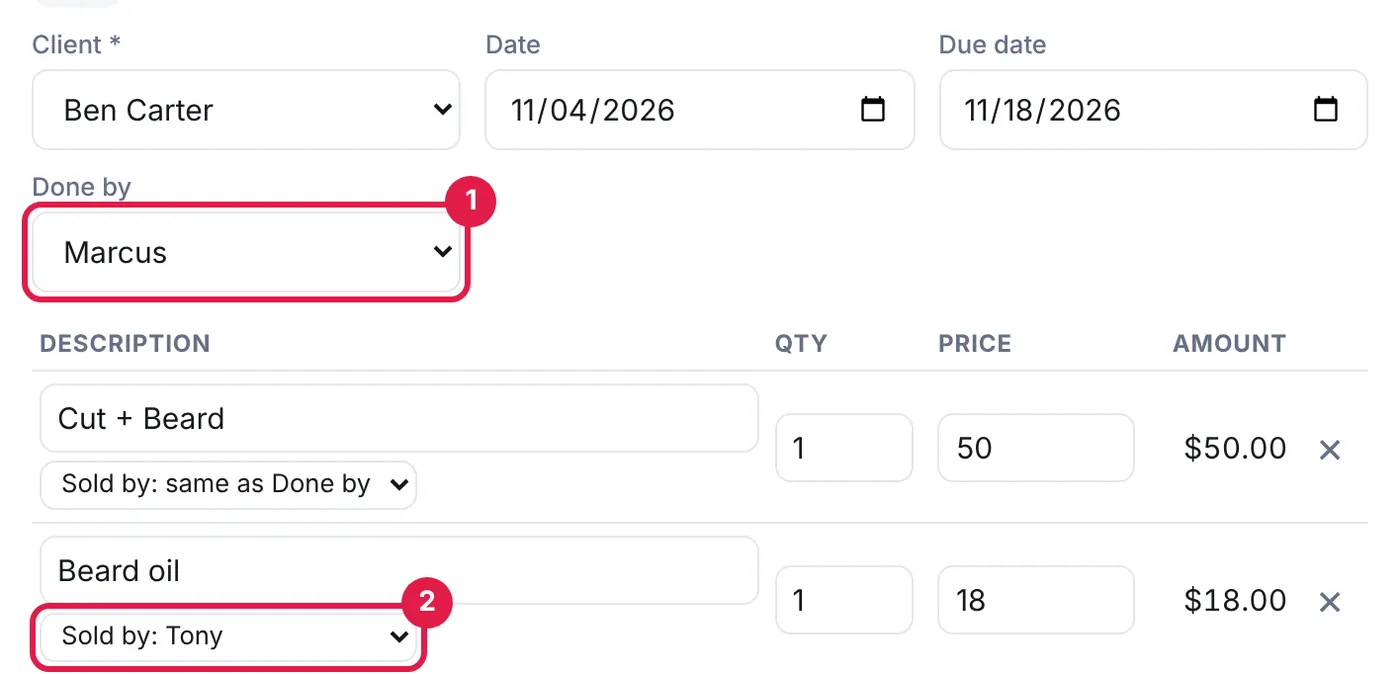
Someone else sold it? Use "Sold by"
On an invoice, 1 Done by is who did the work. 2 Under any line, pick Sold by to credit someone else — like a product sold during another person's appointment.
💡 Good to know
- Same rules for everyone? Click 💾 Save these as the shop default, then 📋 Use the shop default for the others. Their normal % stays their own.
- Goals count sales (before tax, after refunds) for the dates you pick on Staff pay — pick your pay period there.
- Staff pay, the Leaderboard and the Year-End reports all credit each line to its seller.
Pictures show the demo shop "Maple Street Barbers" on a computer. On a phone, the same pages are in the bottom bar and under Menu.
Still stuck? Email support@booktend.app · All guides · Privacy · Terms