Staff time off requests & covering bookings
Staff send a request; nothing changes until you approve it. Once approved, nobody can book that person then.
1
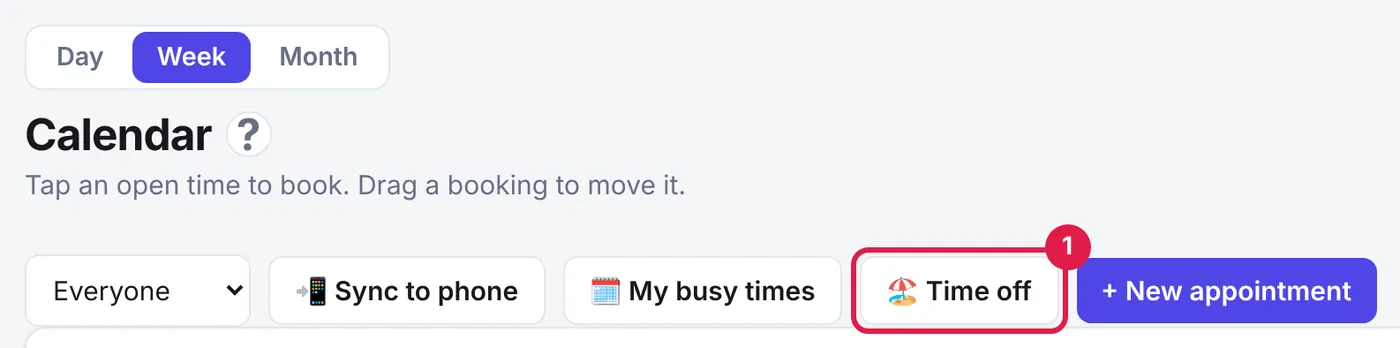
Staff: Calendar → 🏖️ Time off
On their own Calendar page.
2
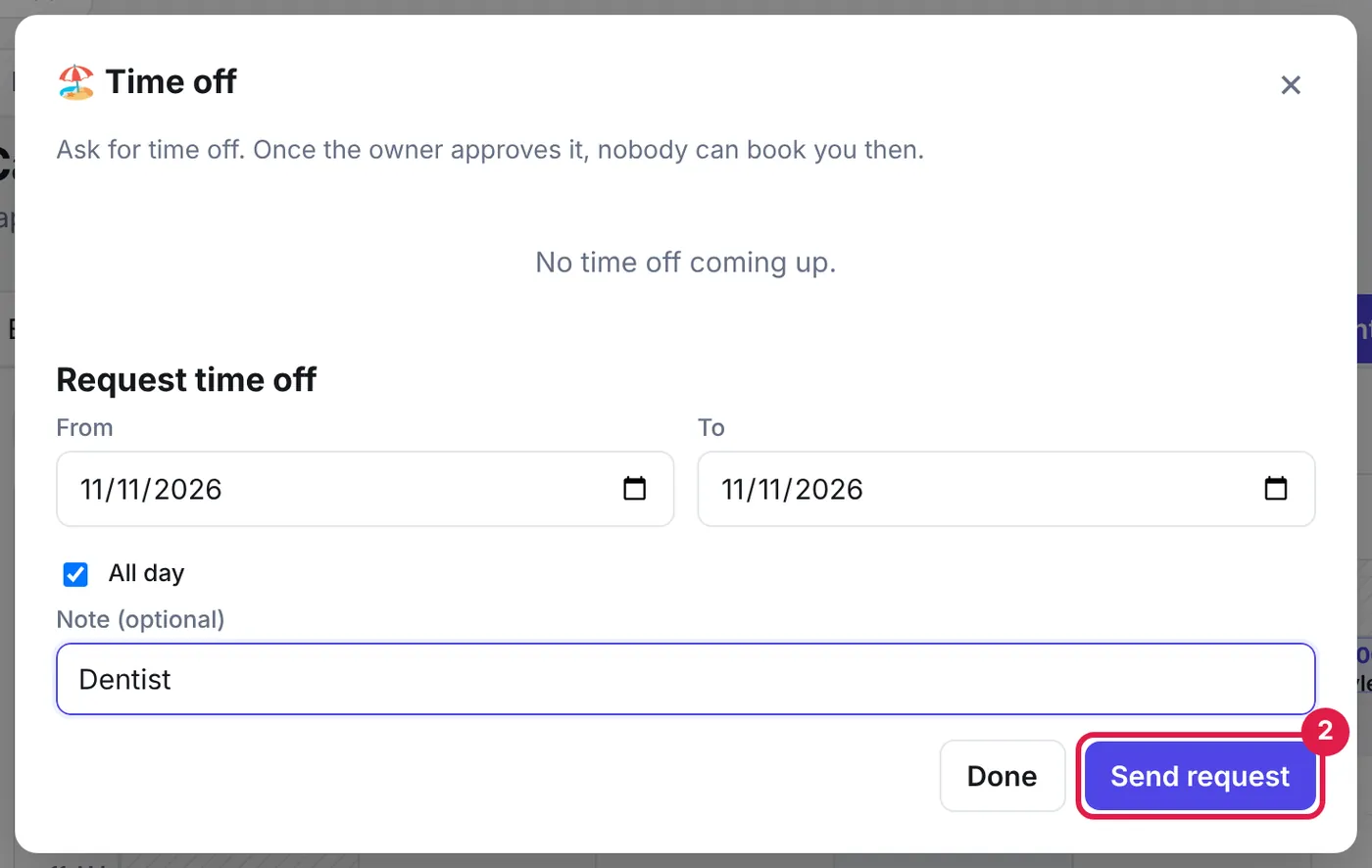
Staff: pick the dates, then Send request
Untick All day for just a few hours. Add a note if they like. The request shows as "Waiting for approval".
3
You see a red number on Calendar
You also get an email, and it shows on Home.

4
Open 🏖️ Time off → Approve or Decline
It also shows how many bookings that person already has then.

5
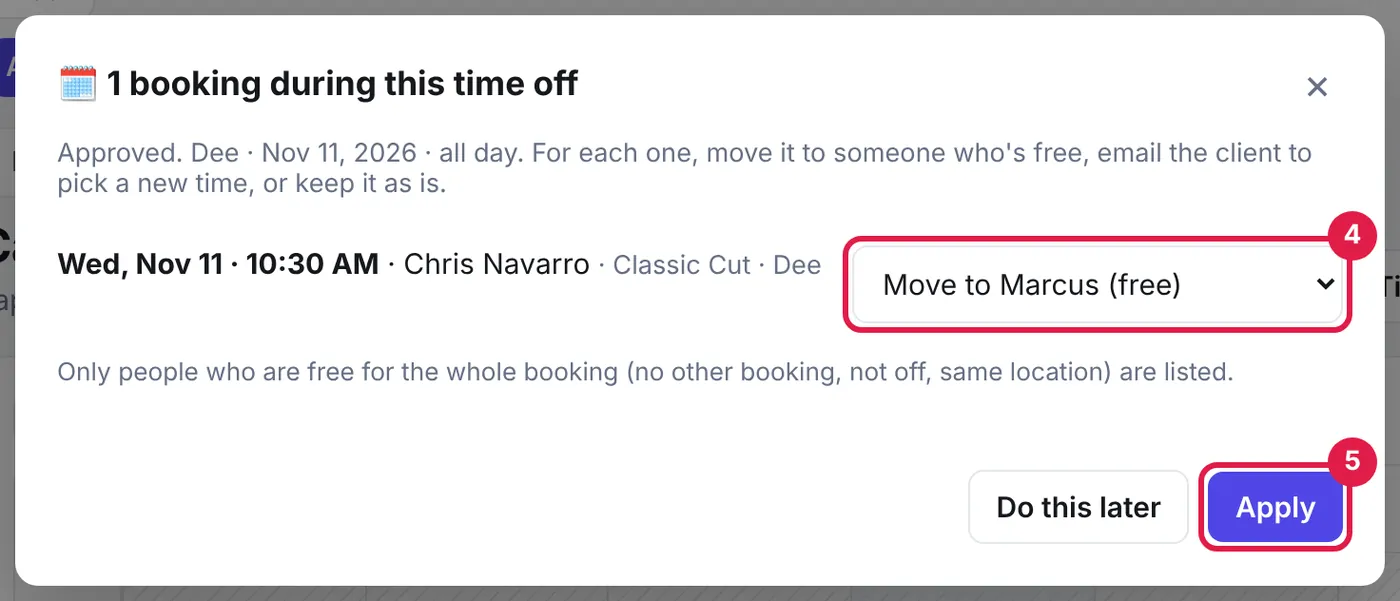
⚠️ Sort out bookings they already have
For each one, pick Move to someone who's free, Email client to pick a new time, or Keep as is. Then click Apply. Only people free for the whole booking are listed.
💡 Good to know
- Clicked Do this later? Open 🏖️ Time off again and click "booked — sort out" next to it.
- Adding time off yourself works the same way — see Set your hours and time off.
Pictures show the demo shop "Maple Street Barbers" on a computer. On a phone, the same pages are in the bottom bar and under Menu.
Still stuck? Email support@booktend.app · All guides · Privacy · Terms