Import PayPal, Venmo, Cash App & bank payments
Download a statement from PayPal, Venmo or Cash App, or your bank's file for Zelle. BookTend matches each payment to an invoice — you approve every one, and nothing is ever counted twice.
Download the statement
PayPal: Activity → Statements → Activity download → CSV. Venmo: Me → ☰ → Statements → Download CSV. Cash App: Activity → Statements → Export CSV. Zelle: download your bank account's activity (CSV, OFX or QFX) from your bank's website.
Go to Money → Payments and click 💸 Import
Then Choose file.

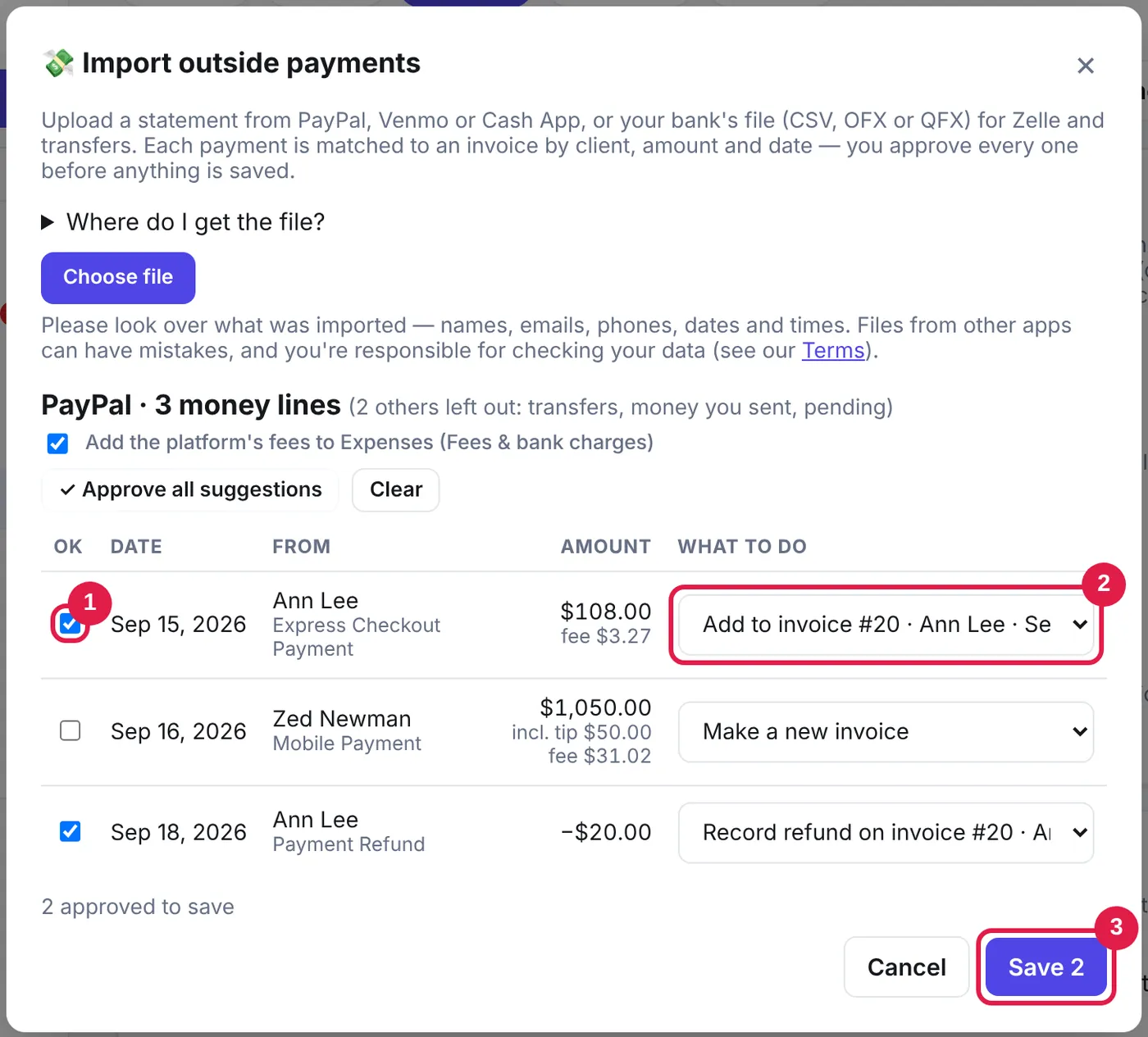
⚠️ Check each line, tick the ones that are right, then Save
1 Tick a line to approve it (Approve all suggestions ticks the matches). 2 Change what to do: add it to another invoice, make a new invoice, or skip it. If you already typed a payment in by hand, BookTend links to it instead of adding it again. 3 Click Save.
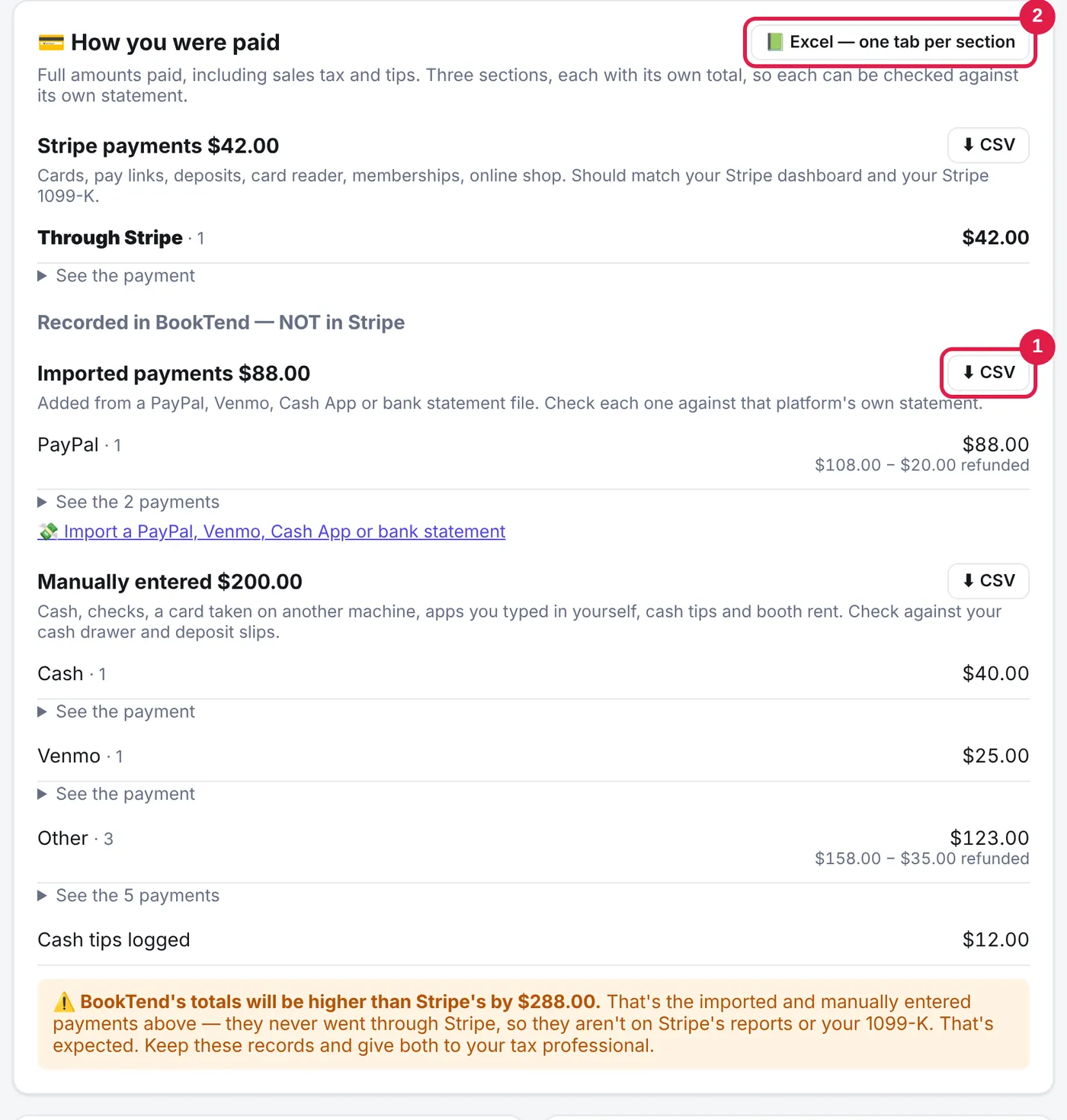
See it in Reports → How you were paid
1 Each part has its own CSV — check it against that platform's statement. 2 Excel gives one tab per part, plus a total per app.
💡 Good to know
- Importing the same statement again is safe: payments already in BookTend are skipped.
- Tick Add the platform's fees to Expenses to log PayPal or Cash App fees as an expense.
- Payments outside Stripe aren't on your Stripe 1099-K. Keep these records for your tax professional.
Pictures show the demo shop "Maple Street Barbers" on a computer. On a phone, the same pages are in the bottom bar and under Menu.
Still stuck? Email support@booktend.app · All guides · Privacy · Terms