Use the calendar: views, colors & blocking time
The Calendar shows every booking. You can see one day, a week or a month, everyone at once or one person, and block off time right on the calendar.
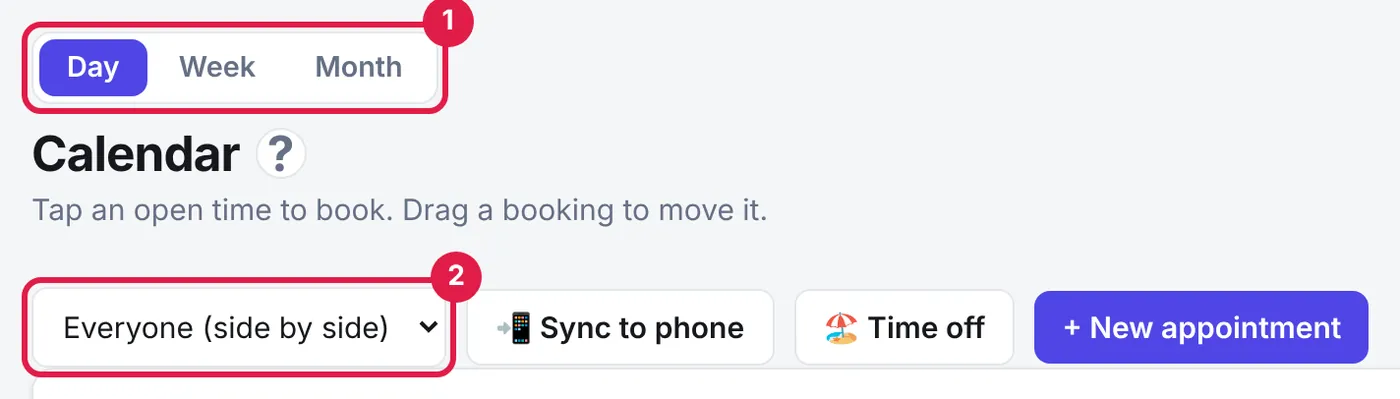
Pick Day, Week or Month
1 The buttons at the top switch the view. 2 Pick one person to see only their schedule, or Everyone.
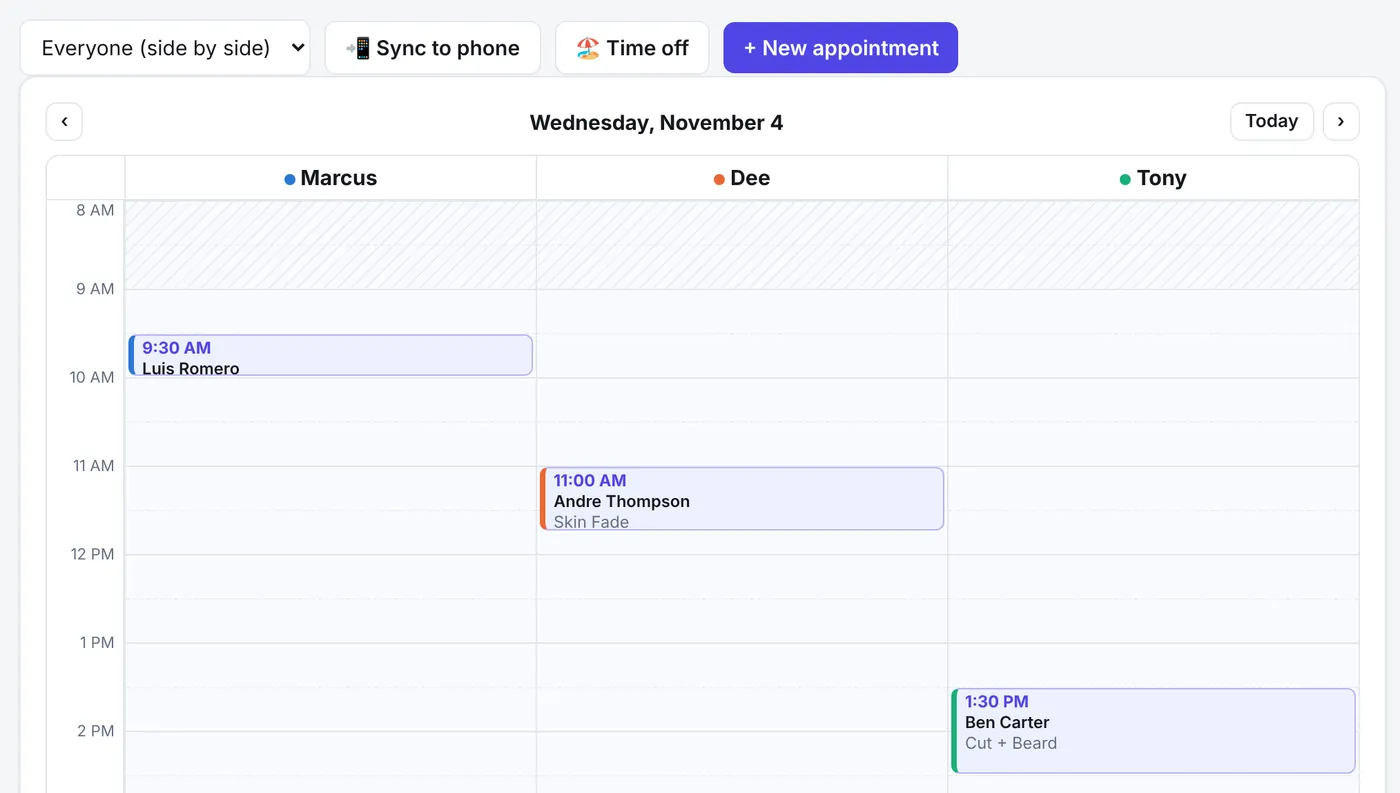
Day view: everyone side by side
In Day, each person gets their own column, in their color. Tap an empty time to book it. Drag a booking to move it, or drag its bottom edge to make it longer or shorter.
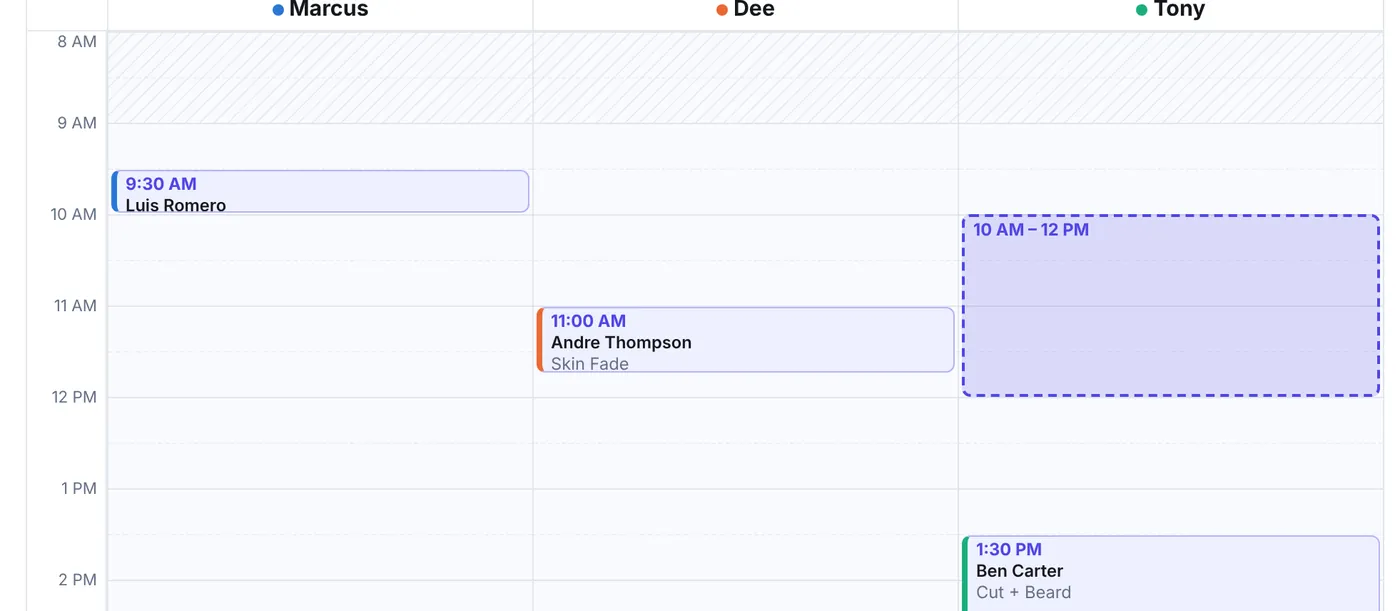
⚠️ Block part of a day: drag down an empty stretch
In Day or Week, drag down an empty part of a column. On a phone, press and hold first, then drag.
Pick 🚫 Block this time
Or pick + New appointment at this time to book it instead.

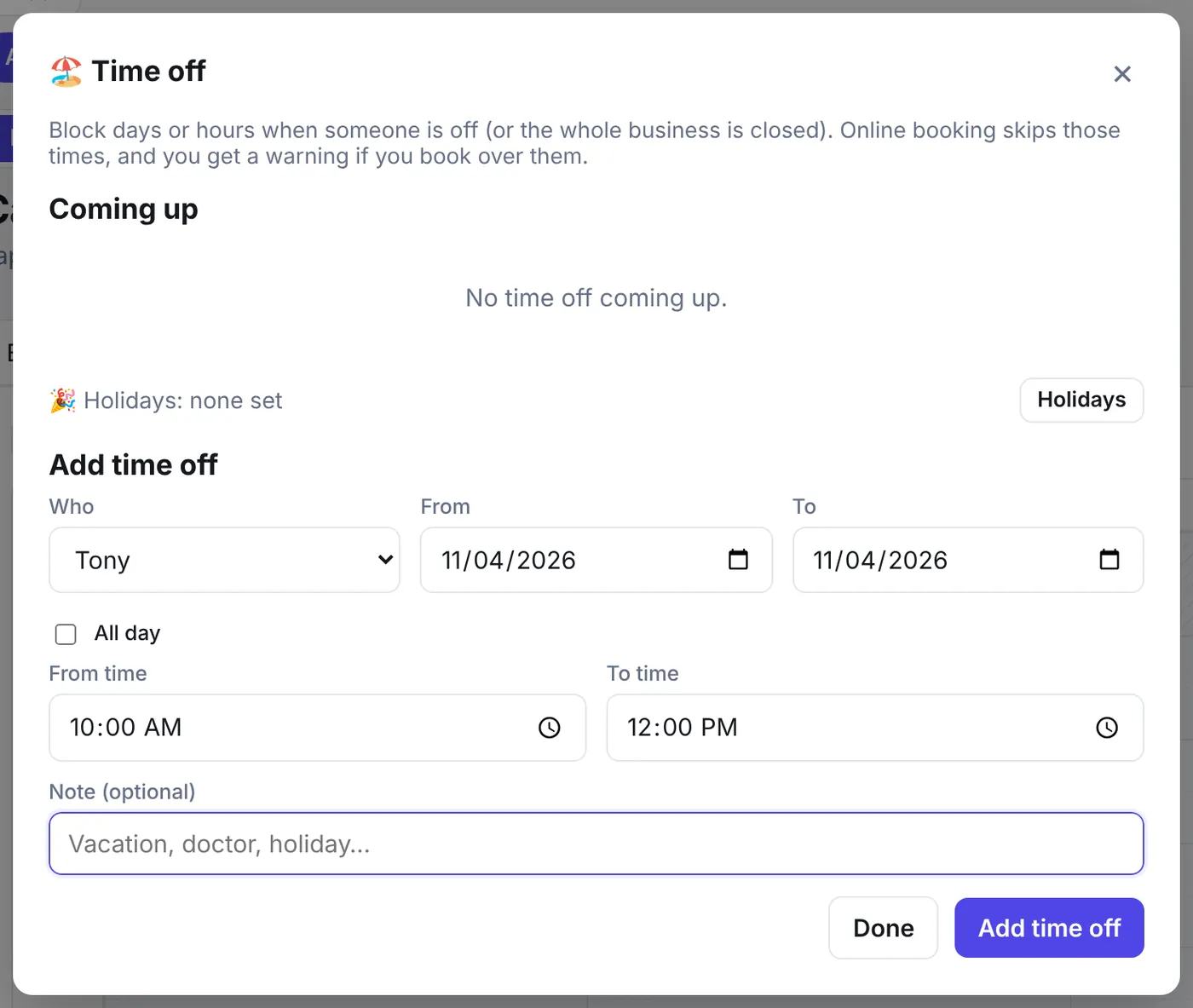
Check it and click Add time off
Time off opens already filled in with the person, the day and the hours. Add a note if you like. Online booking won't offer those times.
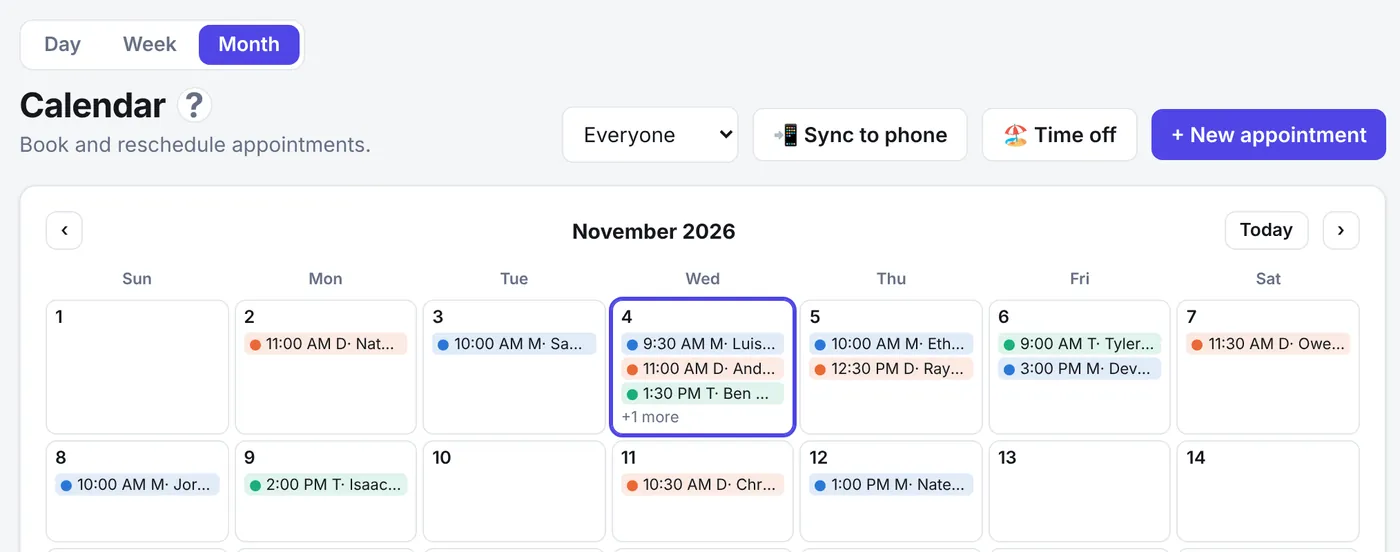
Month view: the whole month at a glance
Each booking shows the time, the first letter of the person and the client. You can drag a booking to another day here too.
Give each person a color
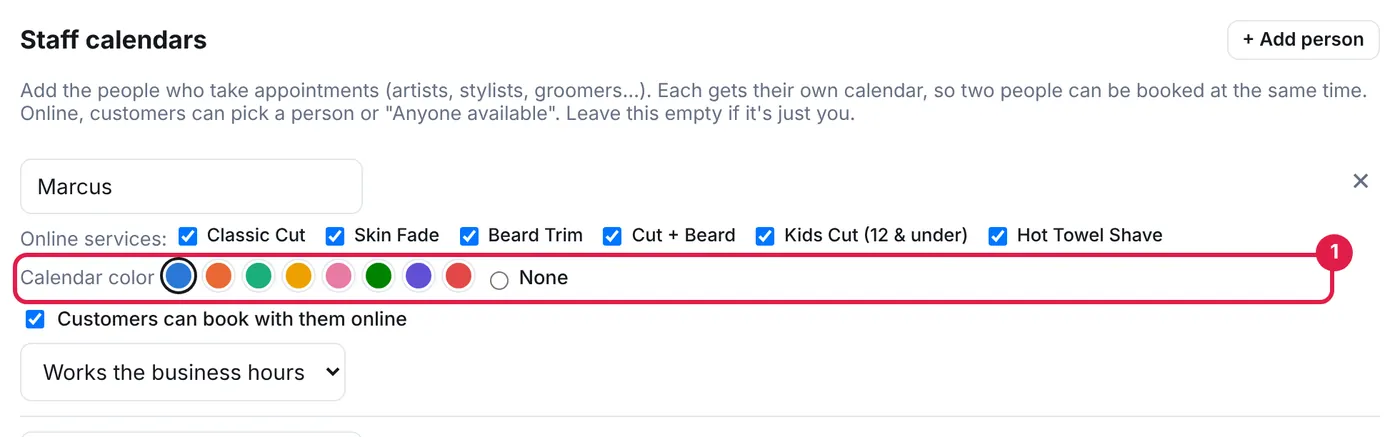
Go to Team. Under each person in Staff calendars, pick a Calendar color (or None), then click Save staff at the bottom.
💡 Good to know
- Colors only show when you have two or more people.
- Staff without manager access who drag out time send it to you as a time-off request instead.
- Want your bookings in Google, Apple or Outlook too? See Connect your Google Calendar and Block time from Outlook, iCloud or Yahoo.
Pictures show the demo shop "Maple Street Barbers" on a computer. On a phone, the same pages are in the bottom bar and under Menu.
Still stuck? Email support@booktend.app · All guides · Privacy · Terms