Add clients or bring them from another app
Each client has one page with every visit, invoice, payment, photo, signed form and note.
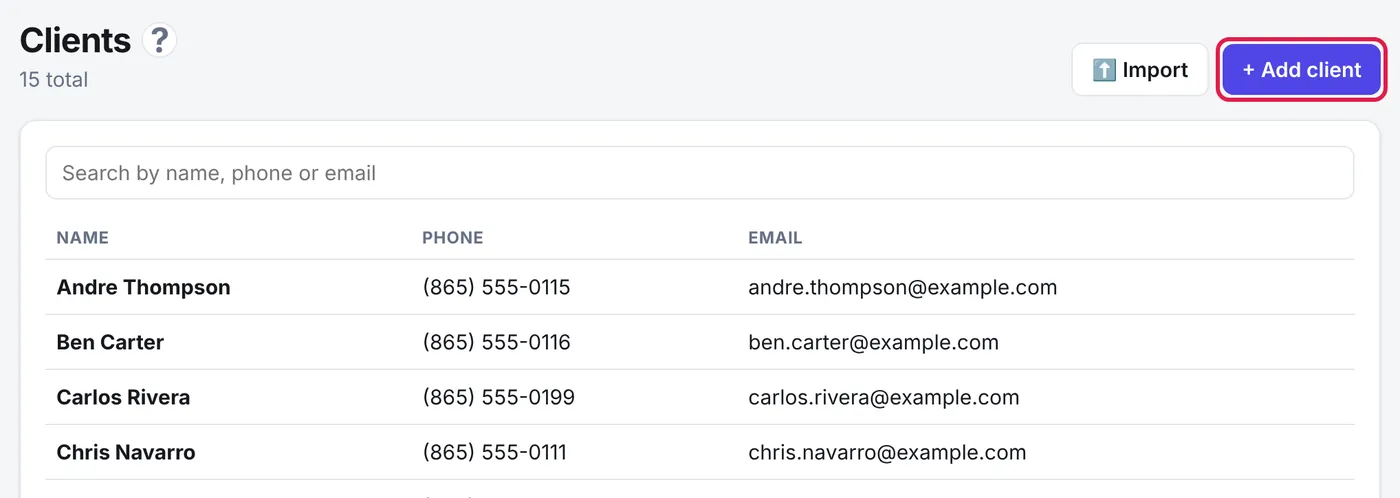
Click + Add client
Go to Clients and click + Add client.
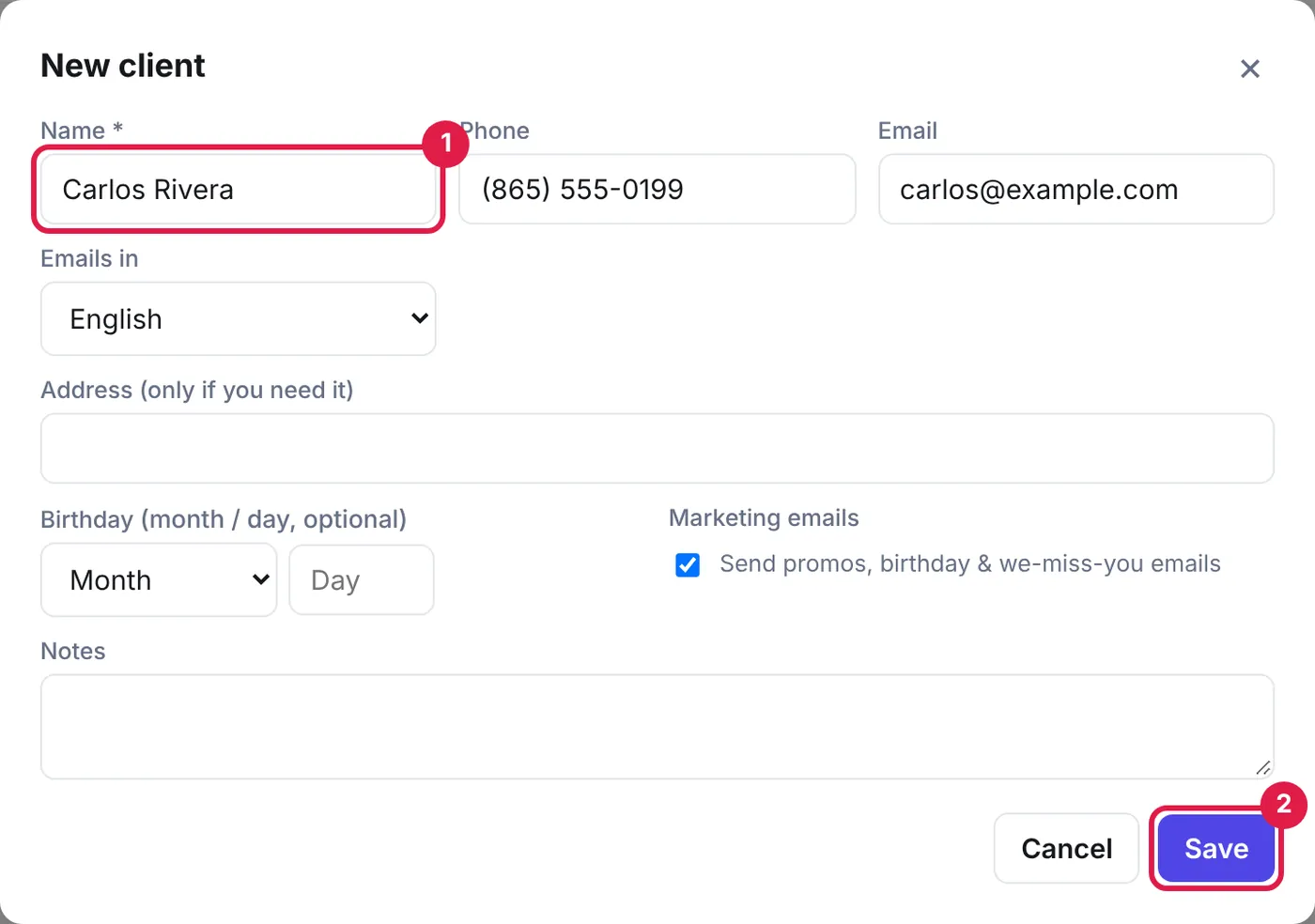
Type their name, phone and email, then Save
Only the name is required. An email lets BookTend send them confirmations, reminders and receipts.
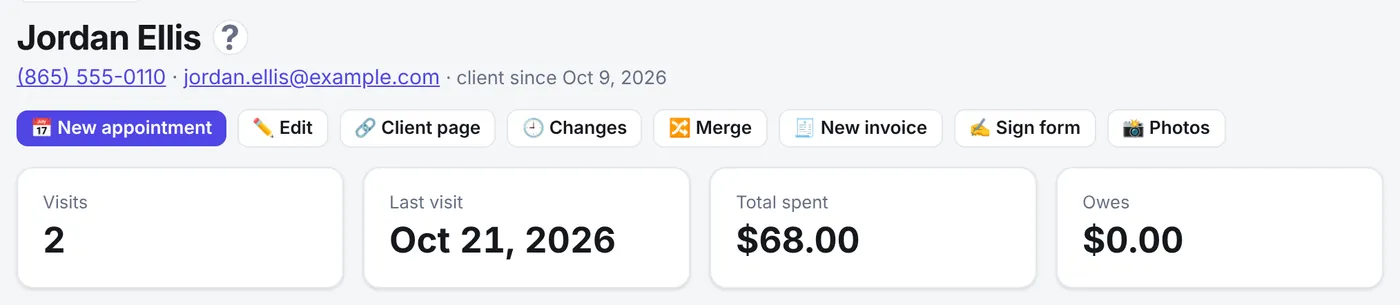
Click a client to see everything
Visits, what they've spent, what they owe, notes — and buttons to book, invoice or get a form signed.
Moving from another app? Import your clients
Download your clients from your old app
Most apps have an Export button in their clients list. CSV, Excel (.xlsx or .xls), iPhone / iCloud contacts (.vcf) and .zip files all work. Not sure where it is? See Import & export files.
Click ⬆️ Import
On the Clients page.

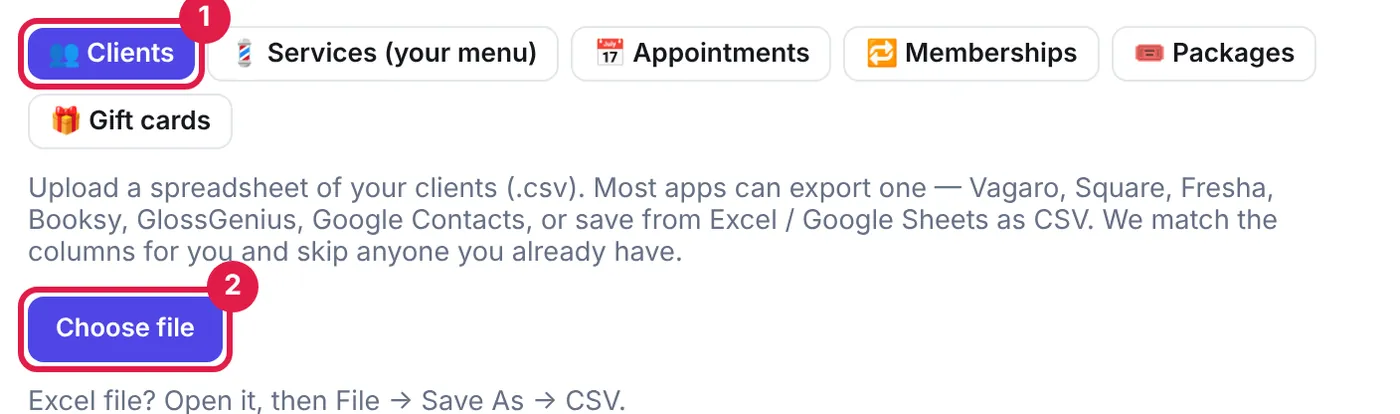
Pick Clients, then Choose file
You can import services, appointments, memberships, packages and gift cards the same way.
Check the columns
BookTend matches the columns for you. If one is wrong, pick the right one from the list — or skip.
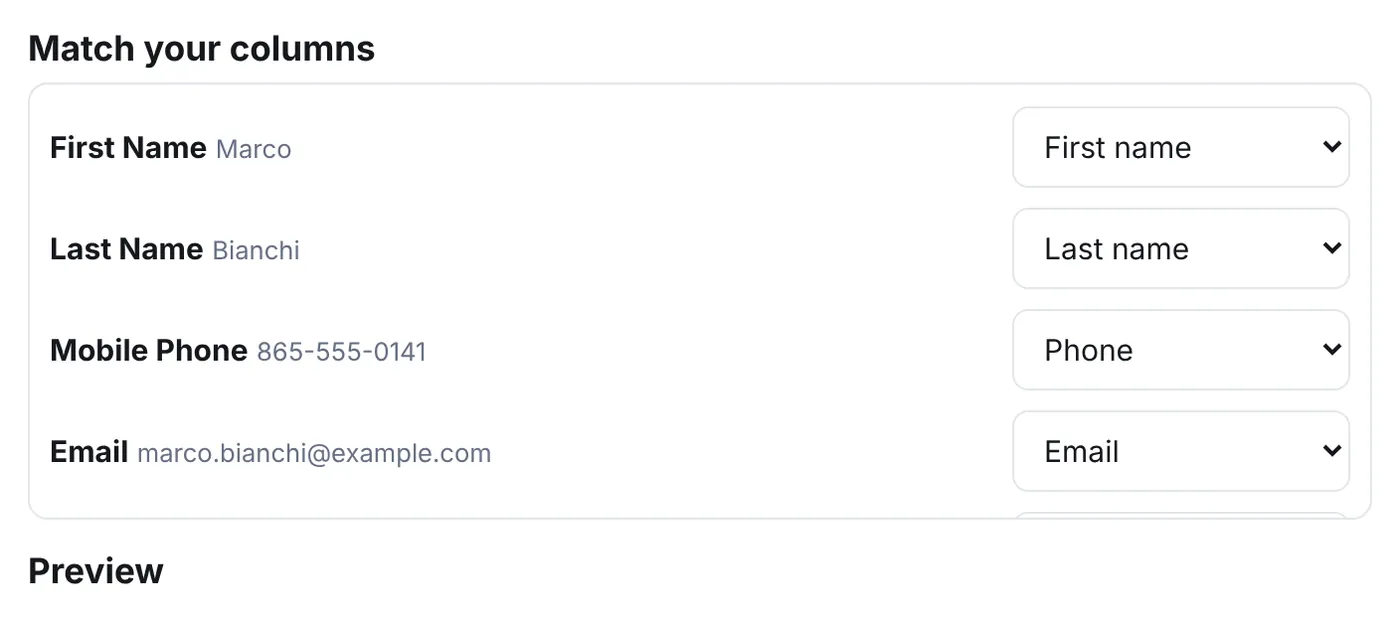
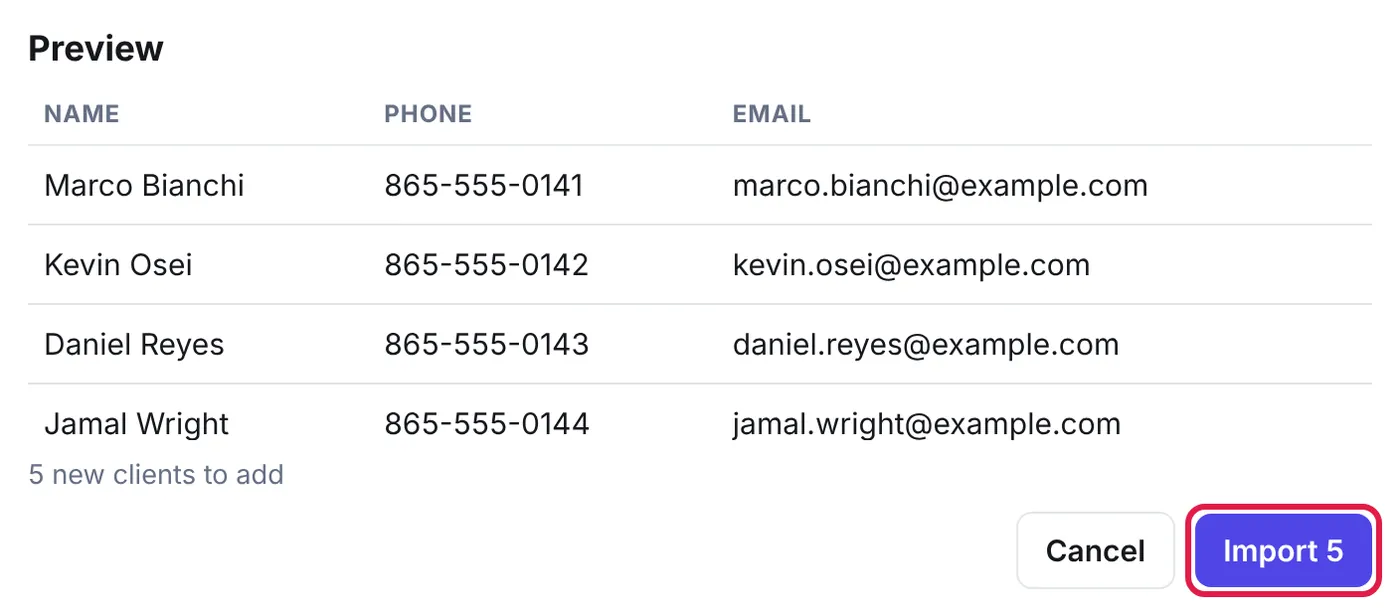
⚠️ Look over the preview, then Import
Anyone you already have is skipped, so it's safe to import twice.
💡 Good to know
- Please look over what was imported — files from other apps can have mistakes.
- Two records for the same person? Open one and click 🔀 Merge.
Pictures show the demo shop "Maple Street Barbers" on a computer. On a phone, the same pages are in the bottom bar and under Menu.
Still stuck? Email support@booktend.app · All guides · Privacy · Terms