Import & export files
BookTend reads CSV, Excel (.xlsx, .xls), contacts (.vcf), calendars (.ics), bank files (.ofx, .qfx) and .zip files. Everything you put in, you can take out — free on every plan.
To bring things in: go to Clients and click ⬆️ Import
Do this on a computer if you can — it's easier to pick files.

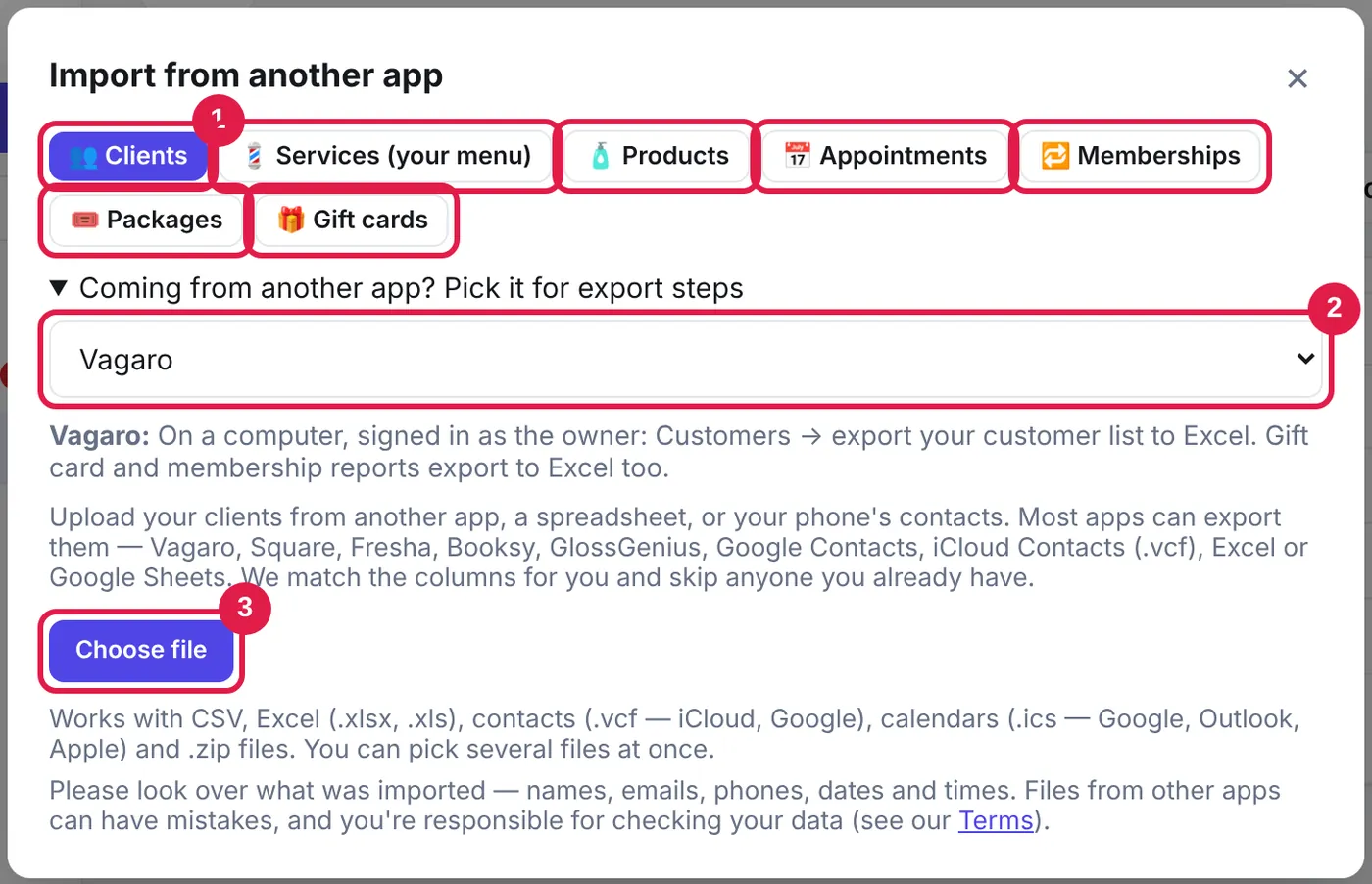
⚠️ Pick what to import, pick your old app, then Choose file
1 Clients, services, products, appointments, memberships, packages or gift cards. 2 Pick the app you're coming from — BookTend shows where its export button is. 3 Choose the file (you can pick several at once).
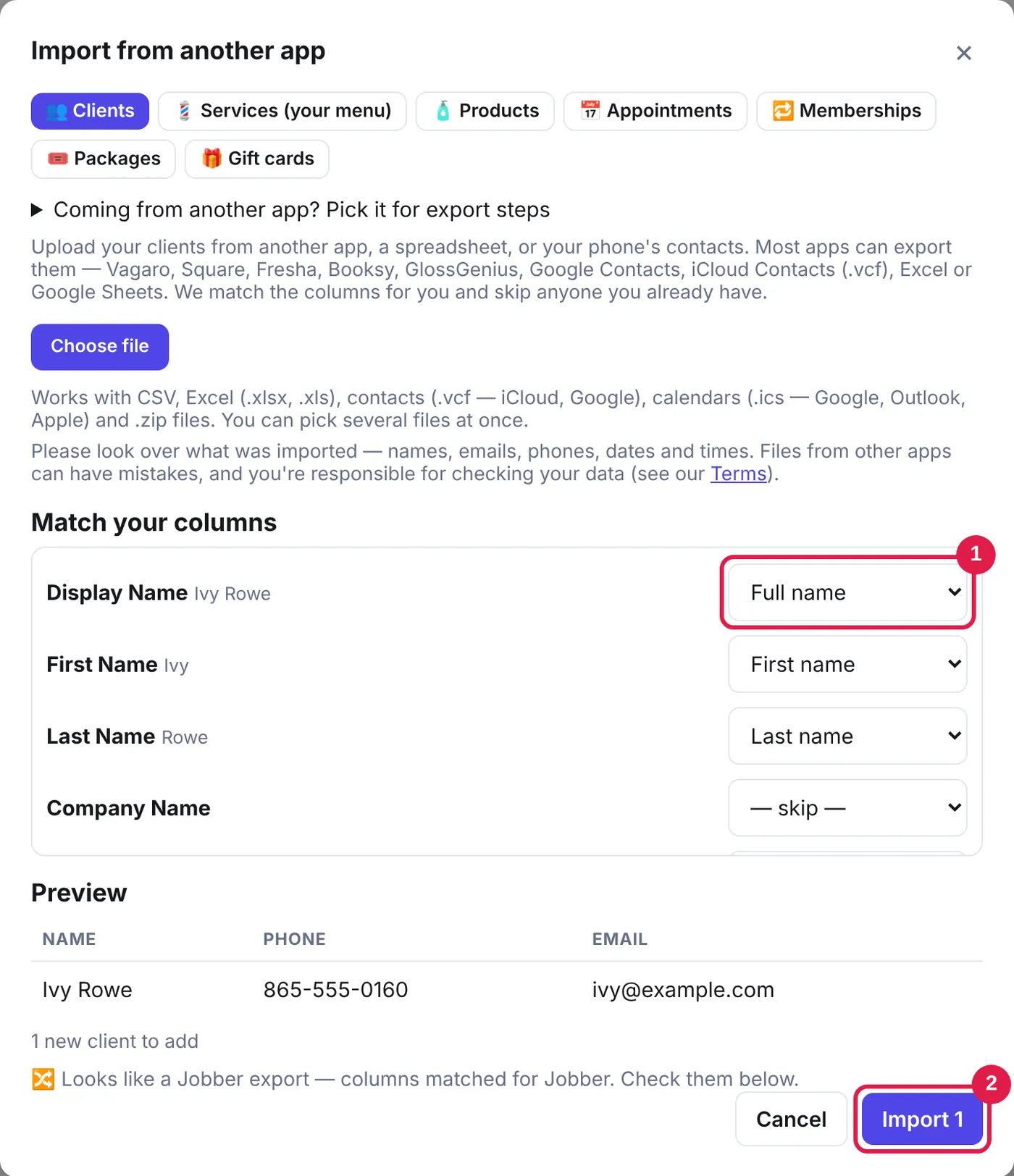
Check the columns, then Import
1 BookTend matches the columns for you (it recognizes files from Square, Vagaro, Fresha, Jobber, Calendly, Acuity, Mailchimp and more). Fix any that are wrong. 2 Click Import. Anyone you already have is skipped, so it's safe to import twice.
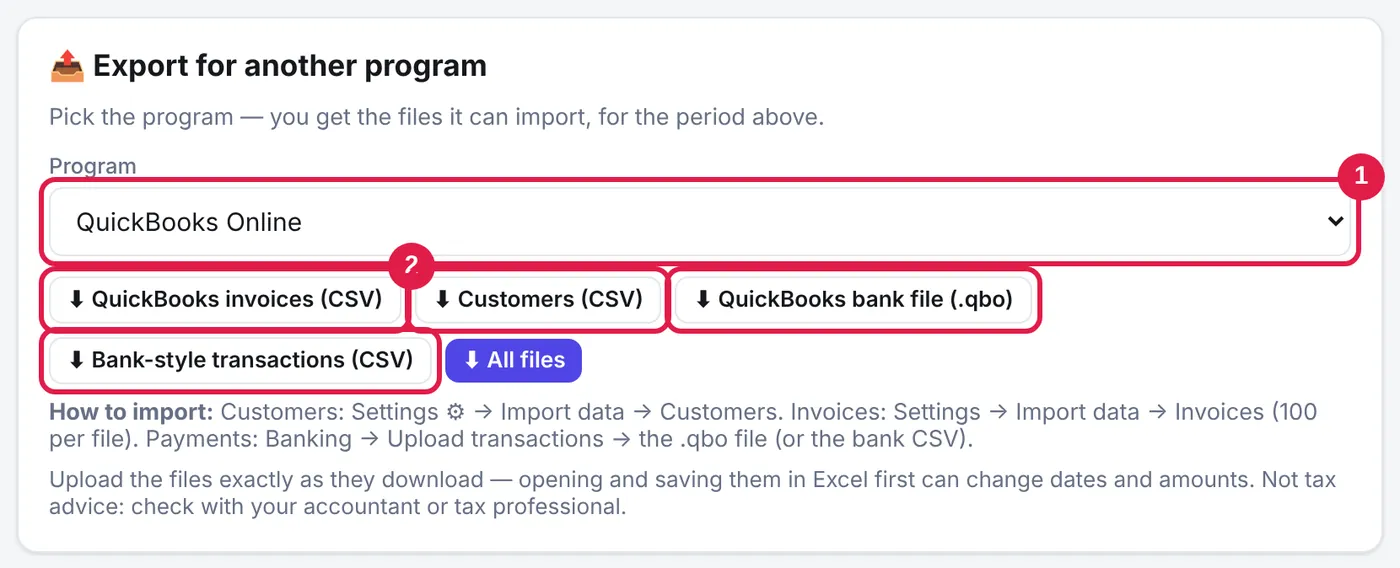
⚠️ To get files out for another program: Reports → Exports
1 Pick the program (QuickBooks, Xero, Wave, FreshBooks, Zoho, Gusto, ADP, Paychex and more). 2 Download its files — or All files. The steps to import them into that program are right under the buttons.
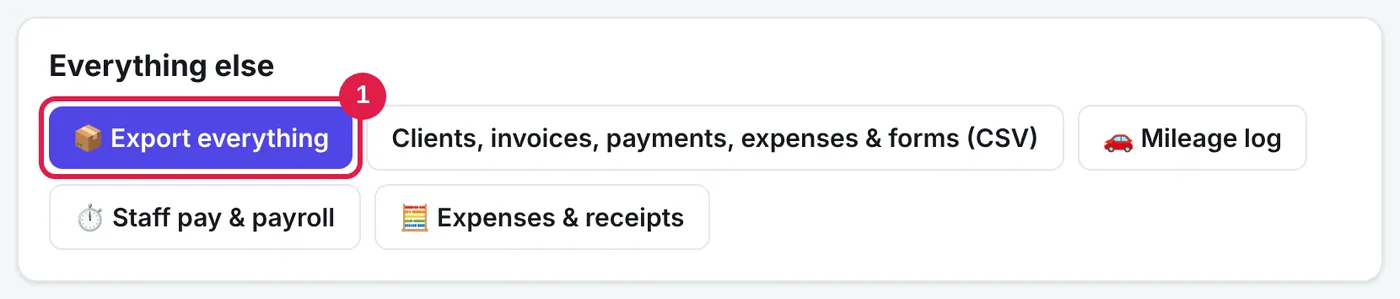
Everything at once: 📦 Export everything
One .zip with every record. Each export is in its own folder with a plain name (Clients, Appointments, Invoices, QuickBooks invoices…), plus a folder for each year of accountant files.
💡 Good to know
- Upload files exactly as they download. Opening and saving them in Excel first can change dates and numbers.
- Moving to another booking app? In the program list, pick Another booking app: you get your clients and upcoming appointments in a layout other apps can import.
- Tax software (TurboTax, H&R Block, FreeTaxUSA) doesn't import a spreadsheet for a business — use the Year-End Report and type in its totals. Not tax advice: check with a tax professional.
Pictures show the demo shop "Maple Street Barbers" on a computer. On a phone, the same pages are in the bottom bar and under Menu.
Still stuck? Email support@booktend.app · All guides · Privacy · Terms