Get set up in 10 minutes
When you first sign in, BookTend asks a few questions so it can turn on the right tools for you. You can change every answer later.
Type your business name
Add your business email and phone if you want clients to see them (each has its own "show to clients" box).
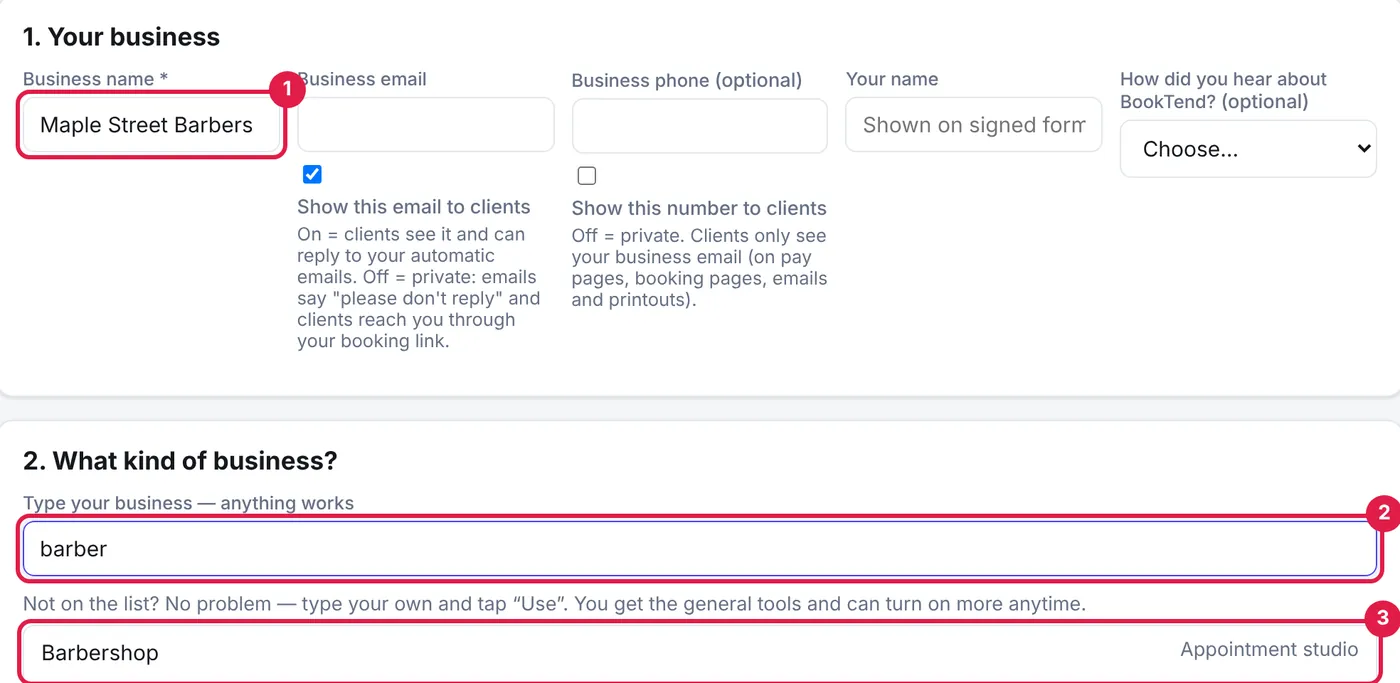
Pick your type of business
Type what you do — "barber", "dog groomer", "plumber", anything — and tap the match. Not on the list? Type your own and tap Use.
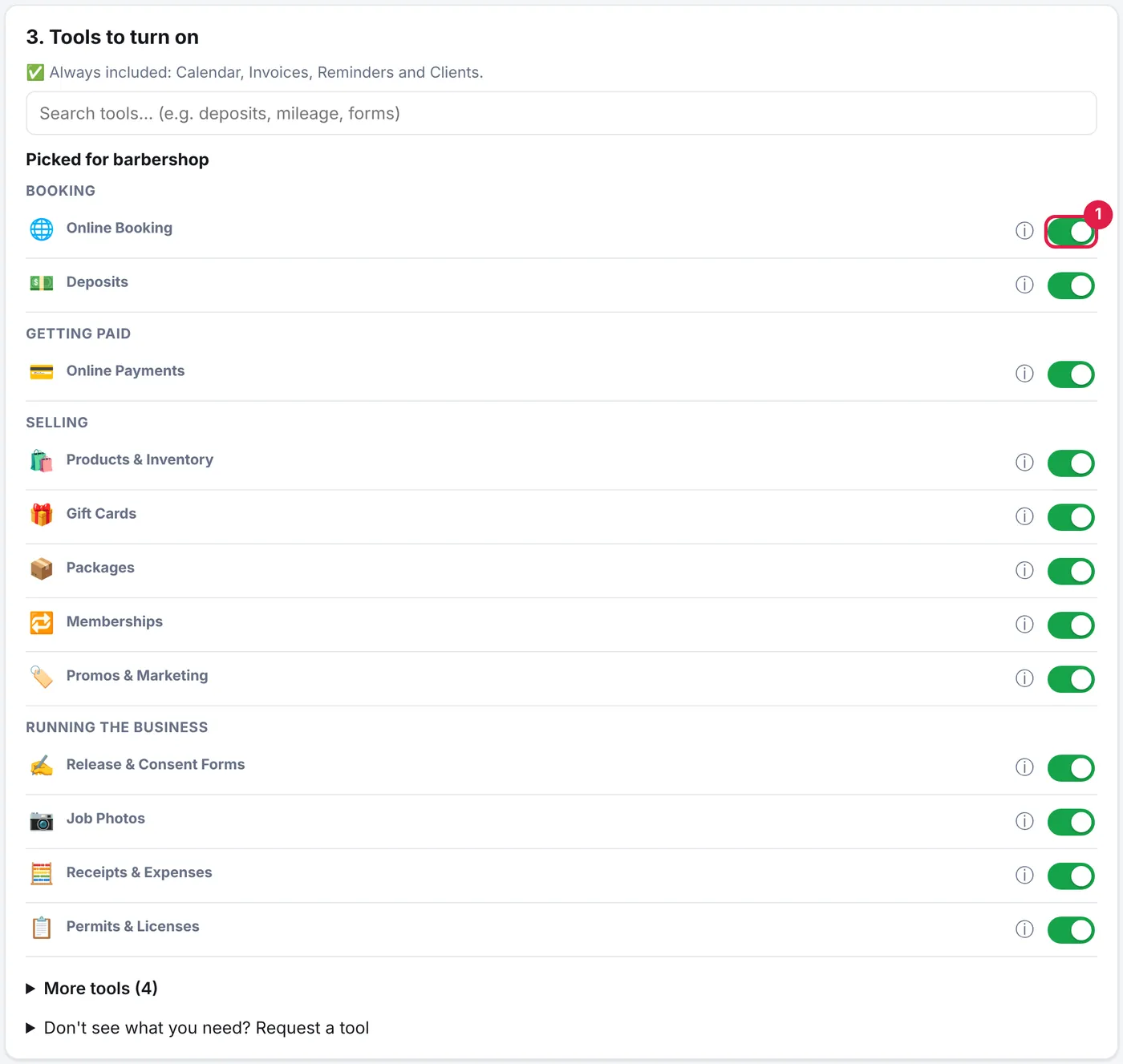
Choose your tools
BookTend turns on the tools that usually fit your type. Flip a switch to turn one on or off, and tap ⓘ to see what a tool does. Not sure? Leave it off. Start simple — you can turn tools on any time in Settings → Business → Edit business setup as your business grows.
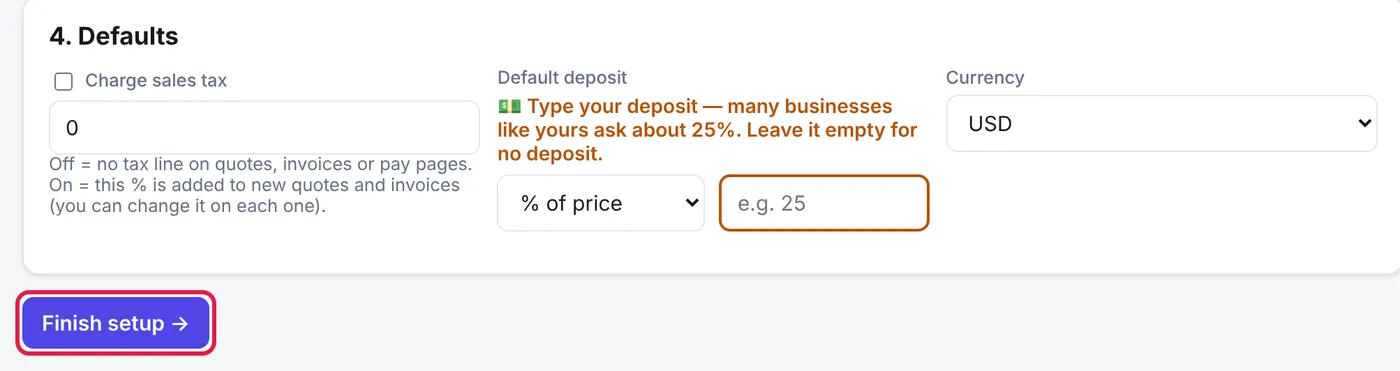
Set your defaults, then Finish setup
Sales tax and a default deposit are optional — leave them empty if you don't use them. Click Finish setup.
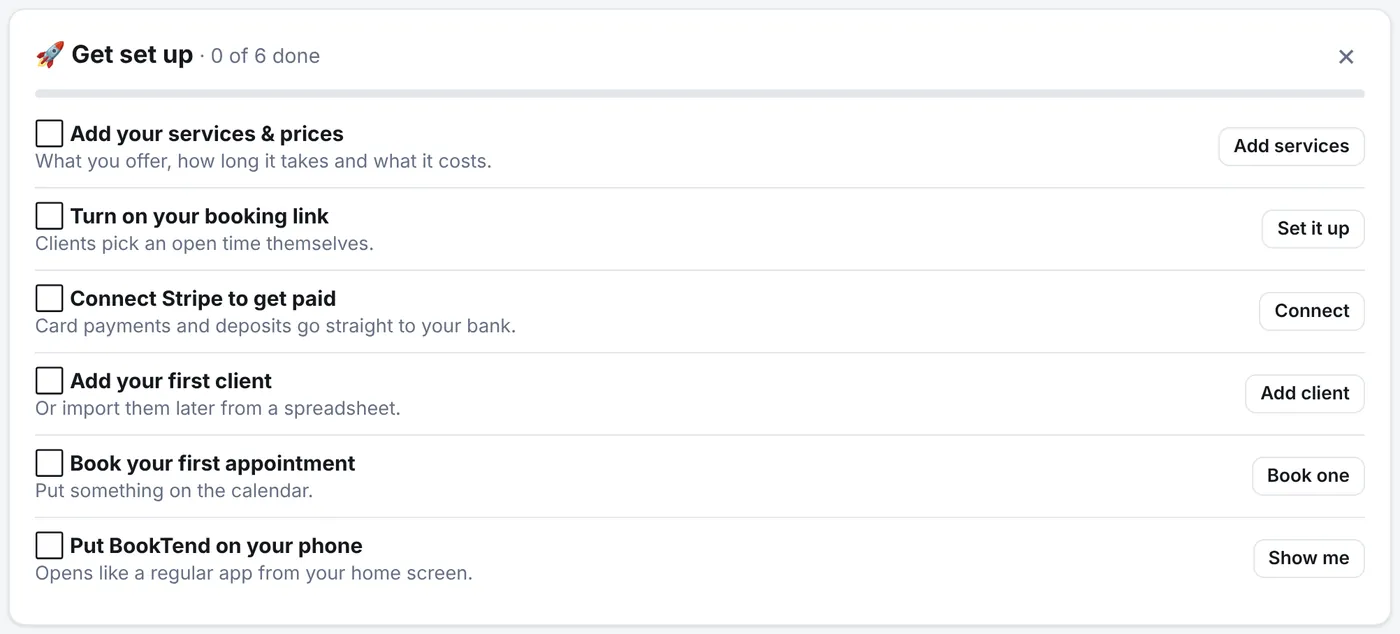
Follow the Get set up checklist on Home
Each line has a button that takes you right there. Each one has its own picture guide too: services, booking link, Stripe, clients, appointments.
💡 Good to know
- On a phone, Home, Calendar, Clients and Money are in the bar at the bottom. Everything else is under Menu.
- Every page has a ? next to its title — tap it to see what the page does.
Pictures show the demo shop "Maple Street Barbers" on a computer. On a phone, the same pages are in the bottom bar and under Menu.
Still stuck? Email support@booktend.app · All guides · Privacy · Terms